Setting Up Your AI Agent
Your agent is the personality that talks to your visitors. The single most important thing you do here is describe how it should behave - that is what this page focuses on. Everything else has its own short guide, linked below.
You can name your agent anything you like; DeskClone powers it behind the scenes.
A Quick Tour of the Tabs
Go to Agents in the sidebar and click your agent card. The configuration page has a row of tabs, with a live preview on the right that you can test at any time.
Setting up an agent: write its personality, set a brand color and welcome message, and make a knowledge file public - with the live preview updating as you go.

The agent configuration page showing the row of tabs with a live preview panel on the right
You do not need all of them on day one. Here is what each is for:
- Personality - how your agent sounds and behaves (covered below)
- Knowledge - which content it can use → see Knowledge Base
- Tools - actions it can take, like looking up an order → see Tools and Integrations
- Advanced - optional fine-tuning (response length, custom instructions) → see Advanced Agent Settings; most teams leave the defaults
- Behavior - what happens when it hands off to a human → see Ticket Sources
- Training - review what your agent wants to learn and manage what it already knows (covered below)
- Share - going live: publishing, branding, and the code for your website → see Embed Widget
Write Your Agent's Personality
Open the Personality tab. Think of this field as a brief for a new team member. Tell your agent:
- What your company does (one sentence)
- What tone to use (friendly, professional, casual)
- What to do when it cannot answer
- Any greetings or phrases to use
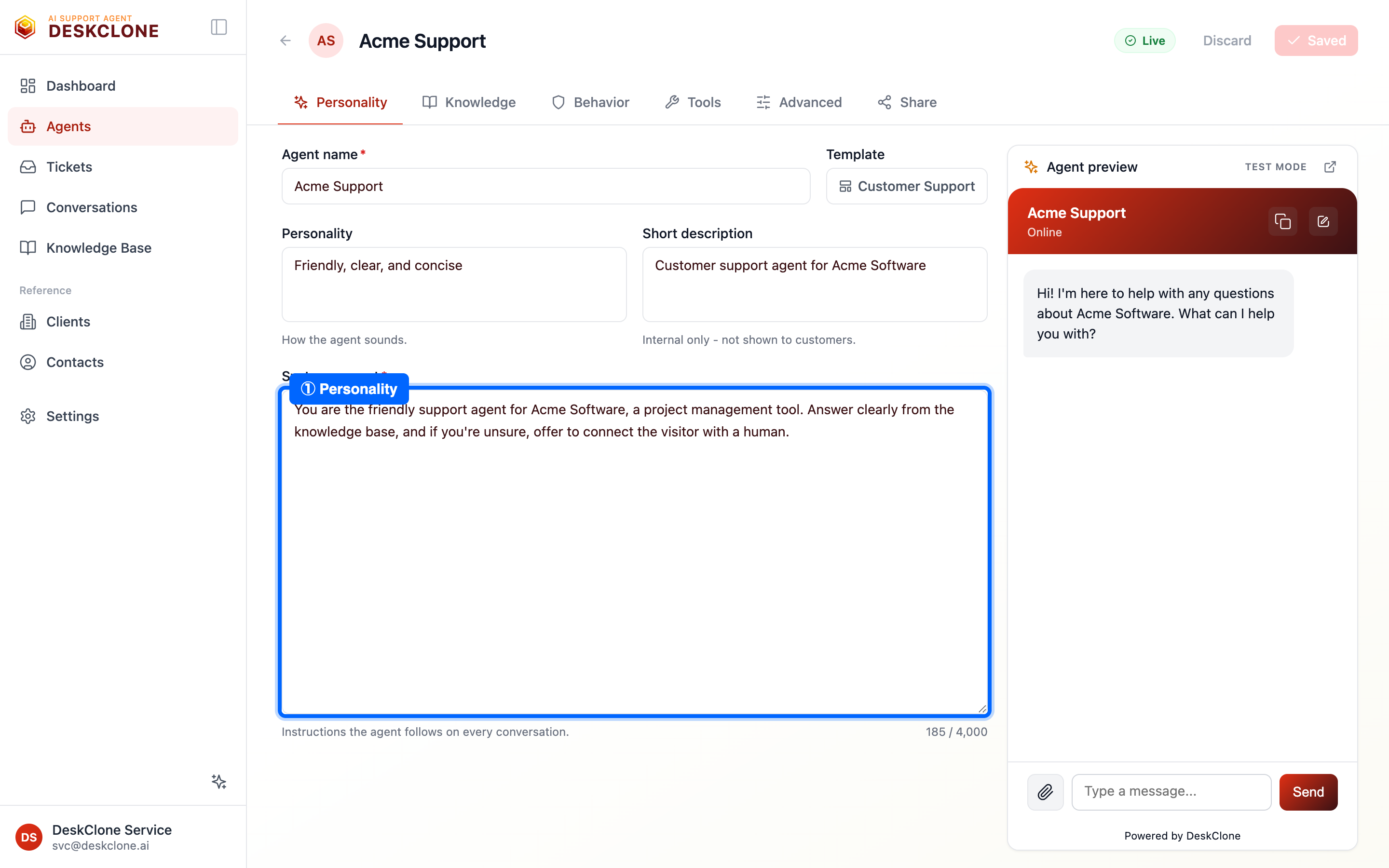
The Personality tab showing the agent name, template picker, and personality description fields
A good description is specific:
"You are the support agent for Acme Software, a project management tool for small teams. Be friendly and conversational. Avoid jargon unless the visitor uses it first. If you do not know the answer, say so honestly and offer to connect them with a human. Never make up information."
A weak one is vague: "Be helpful and answer questions."
The Personality tab also has an Agent name, an internal Short description (not shown to customers), and a Template picker that fills in a starting point you can edit.
Tell your agent what NOT to do, too. For example: "Never discuss pricing - point people to our pricing page." Clear boundaries prevent awkward answers.
Set the Welcome Message
The welcome message is the first thing visitors see when they open the chat. You set it on the Share tab under Appearance. Keep it short and warm - "Hi! I'm here to help with any questions about Acme Software. What can I help you with?" works far better than a long paragraph or a bare "Hello."
Choose Whether to Ask for Email
On the Share tab's Identity sub-tab, you decide whether your agent asks visitors for their email:
- Anonymous - no email asked. Best for landing pages and docs, where you want zero friction.
- Optional - invites an email but lets visitors skip it. Best for most support.
- Required - visitors enter an email before chatting. Best for customer portals.
When a visitor shares an email, it shows up with their conversation so your team can follow up.
Preview as You Build
Use the preview panel on the right to test your agent at any time. Ask the questions your visitors would ask - and a few your agent cannot answer, to check it says "I don't know" gracefully instead of guessing. If it makes something up, make your personality description more explicit about honesty.
You get 5 free test messages a day. After that, test messages count toward your monthly conversation quota - so test freely while setting up, then ease off.
Train Your Agent as You Go
Your agent needs no training to start - it works from your knowledge base on day one. The Training tab is where you coach it as it works:
- Ask - interrogate your agent before customers do: "What do you know about refunds?" It answers from its knowledge, and you can teach or correct it in the same chat ("actually, our window is 45 days"). Facts you teach apply right away and are always visible and reversible.
- Suggestions - knowledge your agent picked up while resolving tickets and wants to save. At most three appear at a time, best first; each shows the exact before/after change, and nothing enters your knowledge base without your approval. Suggestions you ignore expire quietly - there is never a backlog to feel behind on. A red badge means the proposal conflicts with something already in your knowledge base - worth a look, since your agent may answer that topic inconsistently until you resolve it. Blue "review signal" cards point at things to check (like several visitors rating answers on one topic poorly) - act on them, then dismiss.
- Learned - everything it has learned: facts from tickets, preferences you taught it, corrections you made. Edit anything in place, or retire what no longer applies (retired items move to History, where you can restore them any time).
- History - retired knowledge and the suggestions you have reviewed.
You can also teach from a real conversation: open any conversation under Conversations, click the graduation-cap icon, and your agent studies that transcript with you - anything it wants to learn from customer text waits for your review, never applied silently.
If learning happened during the week, the account admin gets one short digest email (what you taught, what waits for approval, and the note that nothing changed without you). Every digest has a one-click unsubscribe.
Adding More Agents
One agent rarely stays enough. As you grow, you can build a team of them - a sales assistant on the pricing page, an onboarding guide inside your product, an FAQ bot on the docs site - each with its own personality, knowledge selection, tools, and widget.
The Agents page shows how many agents your plan includes (for example 3 on Pro, 10 on Business) next to the Add Agent button. Multiple agents are rolling out gradually: if the button offers Request multi-agent access, click it and we'll enable it for your workspace, usually within a day.
Once enabled, Add Agent asks for two things:
- Agent name - what visitors will see, like "Alex from Sales"
- Start from - a template that seeds the personality and starting prompt; pick from thirty use cases across industries, or Custom to write your own
You land straight in the editor to finish the setup - the same tabs as your first agent.
Each agent stays in its lane
- Knowledge - one file tree answers both questions about an agent's knowledge. Each file's Public/Internal pill says whether customers may hear it. The switch above the tree says what this agent draws from: All knowledge (everything, including folders you add later), or Only what I choose - the tree grows checkboxes, and you tick exactly what this agent may use. A folder checkbox selects everything inside it; unticked rows dim. A visitor answer must clear both - selected AND Public - so "everything in one folder", "two folders except one file", or "a handful of files from different folders" are all a couple of clicks. The summary line at the top always states the live result. Deselecting everything simply returns the agent to All knowledge.
- Widget - every agent has its own website code and its own key on the Share tab. Publish each agent to the page where it belongs; unpublishing one never affects the others.
- Conversations - each conversation is recorded against the agent that held it, and the agent cards show a rolling 30-day conversation count so you can see which agents carry the load.
Your plan's monthly conversations are shared across all your agents - adding agents doesn't change your bill.
Removing an agent
Open the agent's Advanced tab. A draft agent that never went live can be deleted from the danger zone at the bottom. Agents with conversation history can't be deleted - their record is preserved - so deactivate them instead, and they stop answering immediately. Your original agent and any published agent are protected from deletion; unpublish first if you really mean it.
What's Next
Your agent has a personality. Now give it something to talk about - head to Knowledge Base to add the content it answers from.
Was this page helpful?