Troubleshooting
This page covers the most common issues you might run into and how to fix them. If your problem is not listed here, use the chat widget on this page to ask DeskClone - it has been trained on all of our documentation.
Widget Not Loading
If the chat widget is not appearing on your website:
Check your connection key
Make sure the data-key attribute in your script tag matches the data-key in the embed snippet on your agent's Share tab, under Publish & share. A mismatched or missing key will prevent the widget from loading.
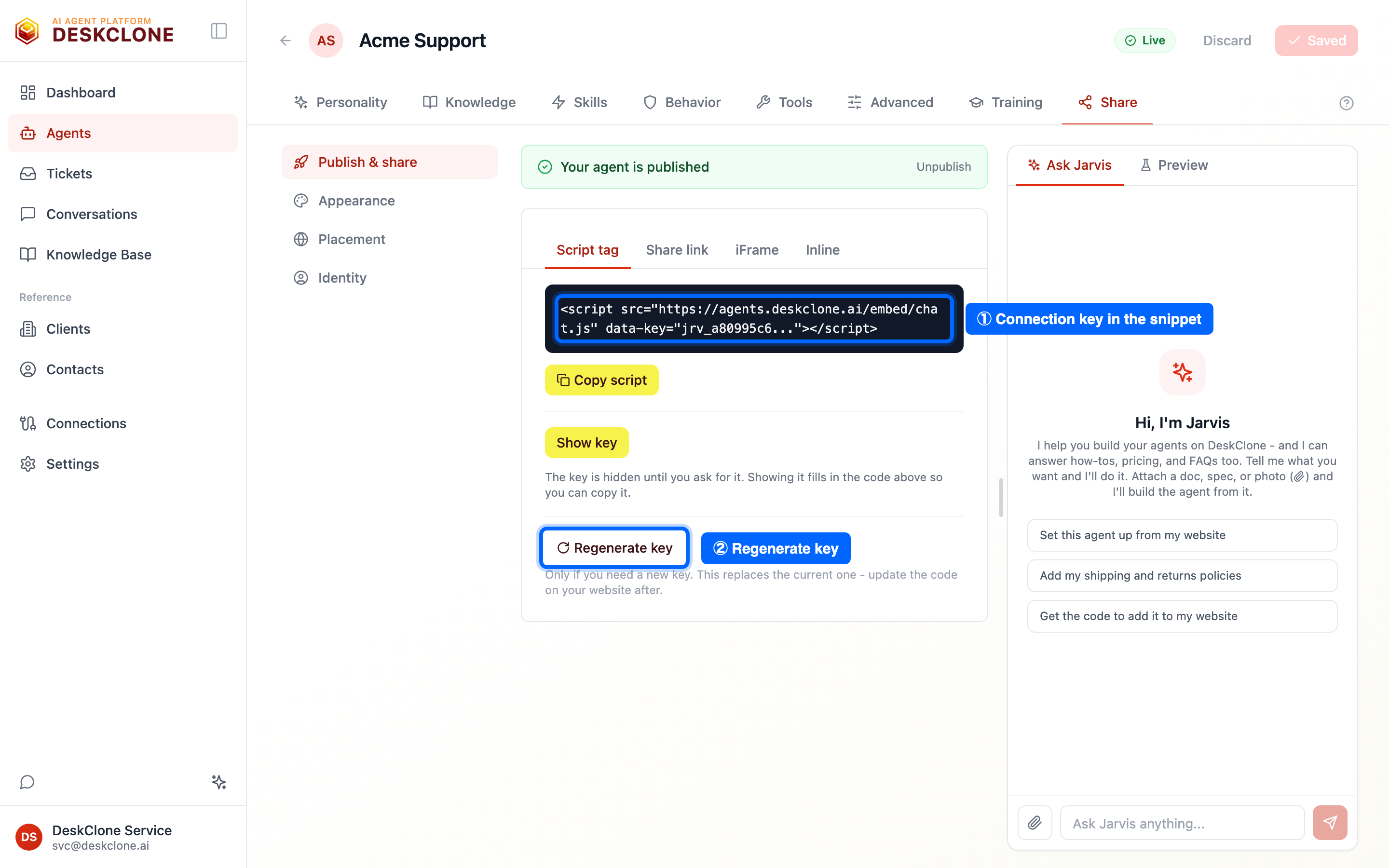
The agent's Share tab: the embed snippet with its connection key, and the Regenerate key action
<!-- Verify this matches the data-key in your embed snippet on the Share tab -->
<script
  src="https://agents.deskclone.ai/embed/chat.js"
  data-key="your-actual-connection-key"
></script>
Check script tag placement
The script tag should be placed just before the closing </body> tag, not inside <head>. Placing it in the head can cause it to load before the page is ready.
<body>
  <!-- Your page content -->

  <!-- Widget script goes here, before </body> -->
  <script src="https://agents.deskclone.ai/embed/chat.js" data-key="..."></script>
</body>
Check CORS (allowed origins)
Your website's domain must be in the allowed origins list for the widget to work. If you see CORS errors in your browser's developer console (F12), your domain is not authorized.
Go to Agents > Share tab > Placement sub-tab and check the Allowed domains setting. Add your website's domain to the list, or contact support for help.
Check for JavaScript conflicts
Some website builders, content management systems, or security plugins may block third-party scripts. Check your browser console for blocked script warnings. If your site uses a Content Security Policy (CSP), make sure it allows scripts from agents.deskclone.ai.
Gmail or Outlook Auth Expired
Email connections occasionally need to be re-authorized. You will see a red Auth Expired badge on the account card in Tickets > Sources.
Find the expired account
Go to Tickets > Sources in the sidebar. The affected account card will show a red "Auth Expired" badge.
Click Reconnect
Click the Reconnect button on the account card.
Re-authorize with Google or Microsoft
Complete the authorization flow. All your settings (allowed senders, poll interval, etc.) are preserved automatically.
Click Reconnect on the existing account card - not "Connect Gmail" or "Connect Outlook" at the top of the page. Those buttons are for adding new accounts. Reconnect preserves your settings; adding a new account starts fresh.
Conversation Limit Reached
If you see a message that your agent has reached their conversation capacity for the month:
- Conversations reset monthly on your billing cycle date. The reset date is shown in the message.
- Everything else still works - email monitoring continues, tickets are still created, your knowledge base is still searchable, and you can still manage existing tickets. Only new conversations are paused.
- Grab a booster pack - booster packs give your agent extra conversations without changing your plan. Available from Settings > Usage.
- Upgrade for more capacity - each tier gives your agent more monthly conversations. Go to Settings > Account to see your options.
If you are on the Free plan (10 conversations/month), upgrading to Starter ($19/month) gives your agent 100 conversations - 10 times more capacity for the cost of a lunch.
Import Job Stuck or Failed
Job stuck in "Extracting" or "Synthesizing"
Large imports (100+ files) can take several minutes to process. The processing happens in the background - you can navigate away and come back.
If a job has been stuck for more than 15 minutes:
- Check the Jobs tab in Knowledge Base > Smart Import for any error messages
- Large imports may hit the processing time limit. Try splitting your files into smaller batches (50-100 files each)
Job failed
If an import job shows a "Failed" status:
- Check the error details on the job card
- The most common cause is file format issues (corrupted PDFs, password-protected documents, or extremely large individual files)
- Try the import again with the problematic files removed
Failed imports do not create partial knowledge base entries. If a job fails, nothing from that job is added to your knowledge base - you can safely retry without worrying about duplicates.
Your Agent Giving Wrong or Incomplete Answers
If your agent is not answering questions accurately:
Check your knowledge base content
The most common cause of poor answers is missing content. If a visitor asks about a topic that is not well-covered in your knowledge base, your agent either cannot answer or may give a generic response.
Fix: Go to Knowledge Base > Coverage Gaps to see what topics visitors are asking about that your content does not cover. Create articles for the most frequent gaps.
Check file visibility
Your agent can only search files that are in a general knowledge source and have public visibility. If you know the answer exists in your knowledge base but your agent is not finding it:
- Go to Knowledge Base > Files
- Find the relevant file
- Verify the source is general (not a client-specific source)
- Verify the visibility is "public" (not "internal")
Add more content on the topic
Sometimes the content exists but is not detailed enough. If your agent is giving partially correct answers, add more detail to the relevant knowledge base article - especially around the specific question being asked.
Check the personality description
If your agent is answering correctly but in the wrong tone or style, review your personality description in Agents > Personality tab. Make sure it clearly describes the communication style you want.
Password Issues
Forgot your password
If you cannot sign in because you forgot your password, contact support at support@deskclone.ai for a password reset.
Changing your password
Password change functionality is available in Settings > Security.
Assistant Ended Without a Reply
If an assistant turn finishes with the message "The assistant ended this turn without producing a reply. Nothing was saved.", the AI returned an empty response for that turn - it is not stuck, and nothing was changed or recorded.
What to do
- Resend your message - a single empty turn is almost always transient and the retry succeeds.
- If it keeps happening, the AI provider may be having issues. Wait a minute and try again, or contact support if it persists.
A step shows "failed"
When a tool step in the assistant shows failed instead of a check mark, that lookup or action did not succeed - the assistant's reply will say what happened and what it did instead (for example escalating, or asking you to retry). This is deliberate: a step that didn't work is never shown as done.
Browser Compatibility
DeskClone works best in modern browsers:
- Chrome (latest 2 versions)
- Firefox (latest 2 versions)
- Safari (latest 2 versions)
- Edge (latest 2 versions)
If you experience display issues, make sure your browser is up to date.
Getting Help
If your issue is not covered here:
- Ask DeskClone - use the chat widget on this documentation site. It has been trained on all of our docs and can answer most questions.
- Email support - reach out to support@deskclone.ai with a description of your issue. Include screenshots if possible.
We typically respond within one business day.
Was this page helpful?