Jarvis
Jarvis is built into DeskClone and helps you build and run your agents by just talking to it (some people call it an AI helper or copilot). Ask it a how-to question and it answers; ask it to set something up and it actually does it - creates the agent, configures it, makes knowledge public (Customers can see), turns it on, and hands you the code for your website. You stay in control: every change Jarvis makes can be undone in one click. Before your first message, Jarvis asks you to verify your email (it changes your agent, so we check the address is yours): your first dashboard asks for the code right where you will type to Jarvis.
Where to Find Jarvis
- Your dashboard always has a box for Jarvis at the top. What you type there opens Jarvis's page, where the chat takes the whole page. Preview opens beside it (or over it on a smaller screen) to try an agent the way a customer would; with more than one agent, pick which one at the top of Preview, next to where it is live, Add to your website and Full editor.
- In the sidebar, Jarvis takes you back to that page once you have talked to it.
- In the agent editor, Jarvis is the panel on the right, next to Preview.
- Everywhere else, Jarvis lives in the round chat button in the bottom-right corner. Click it to open the panel.
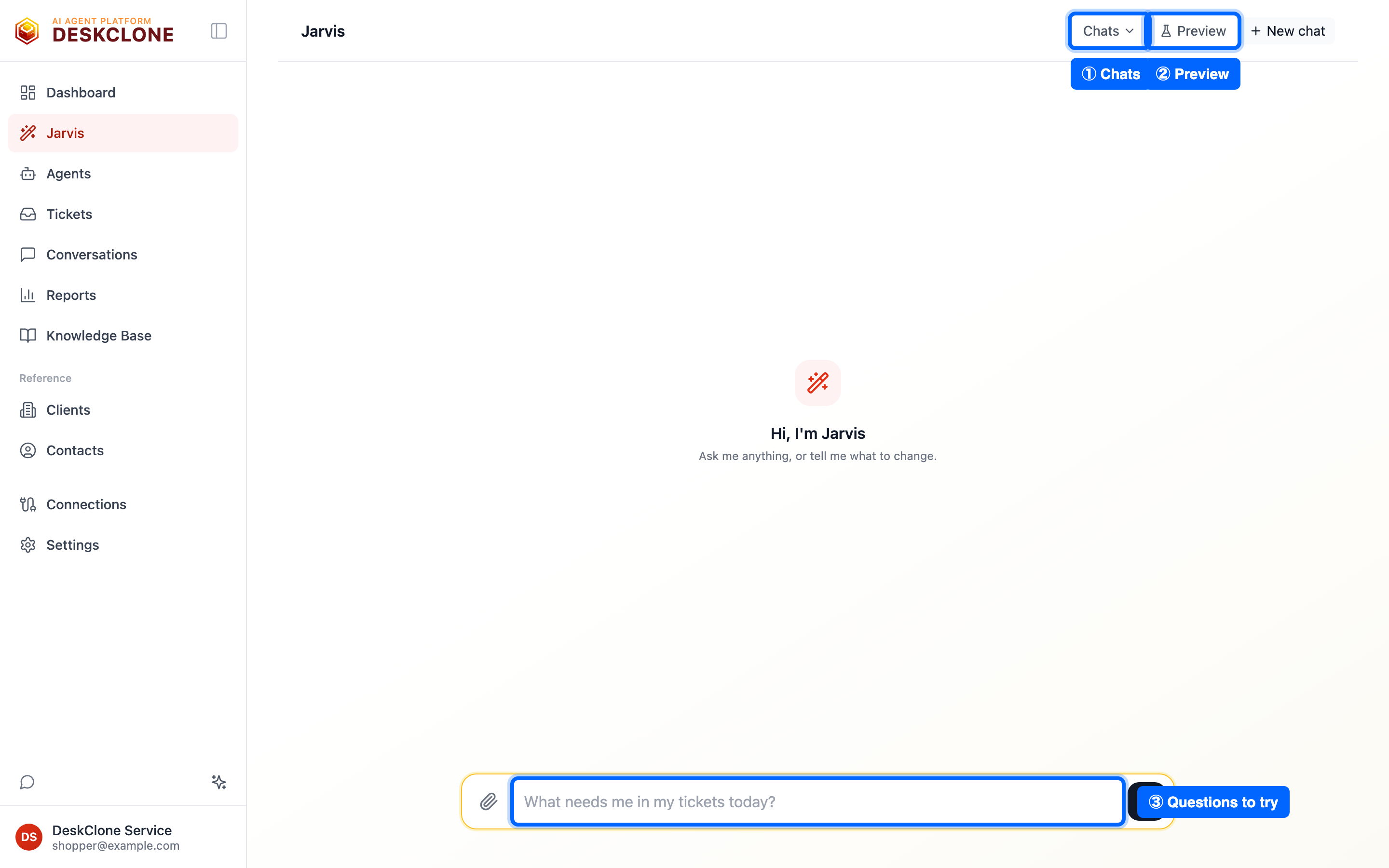
Jarvis's page on a new chat: Chats (1), Preview (2), and a question to try, rotating in the input (3)
On a new chat, the input shows a question you could ask, changing every few seconds, picked for where your workspace is.
If Jarvis hasn't started answering a message after a minute and a half, the chat says so; nothing is lost, and you can send it again or start a new chat. Jarvis picks up your latest chat wherever you open it, on any device. New chat starts a fresh one, and once you have more than one, Chats lists them by the first thing you asked; the pencil beside a chat gives it a name of your own (clear the name to go back to the first message). A chat that has grown long, or that you haven't used for a week, isn't continued: your next message starts a new chat, and the old one stays under Chats. A chat isn't tied to one agent: in one chat you can change several agents ("make the returns bot friendlier and the sales bot shorter"). If you have more than one agent and don't say which, Jarvis asks; once you have named one, it keeps working on that one until you name another, and the line above where you type says which ("Working on Returns bot"). Chats shows which agents each chat worked on. Jarvis in an agent's editor knows which agent you are looking at. When you have chosen what your agent can share, Jarvis tells you what you shared and offers to try your agent.
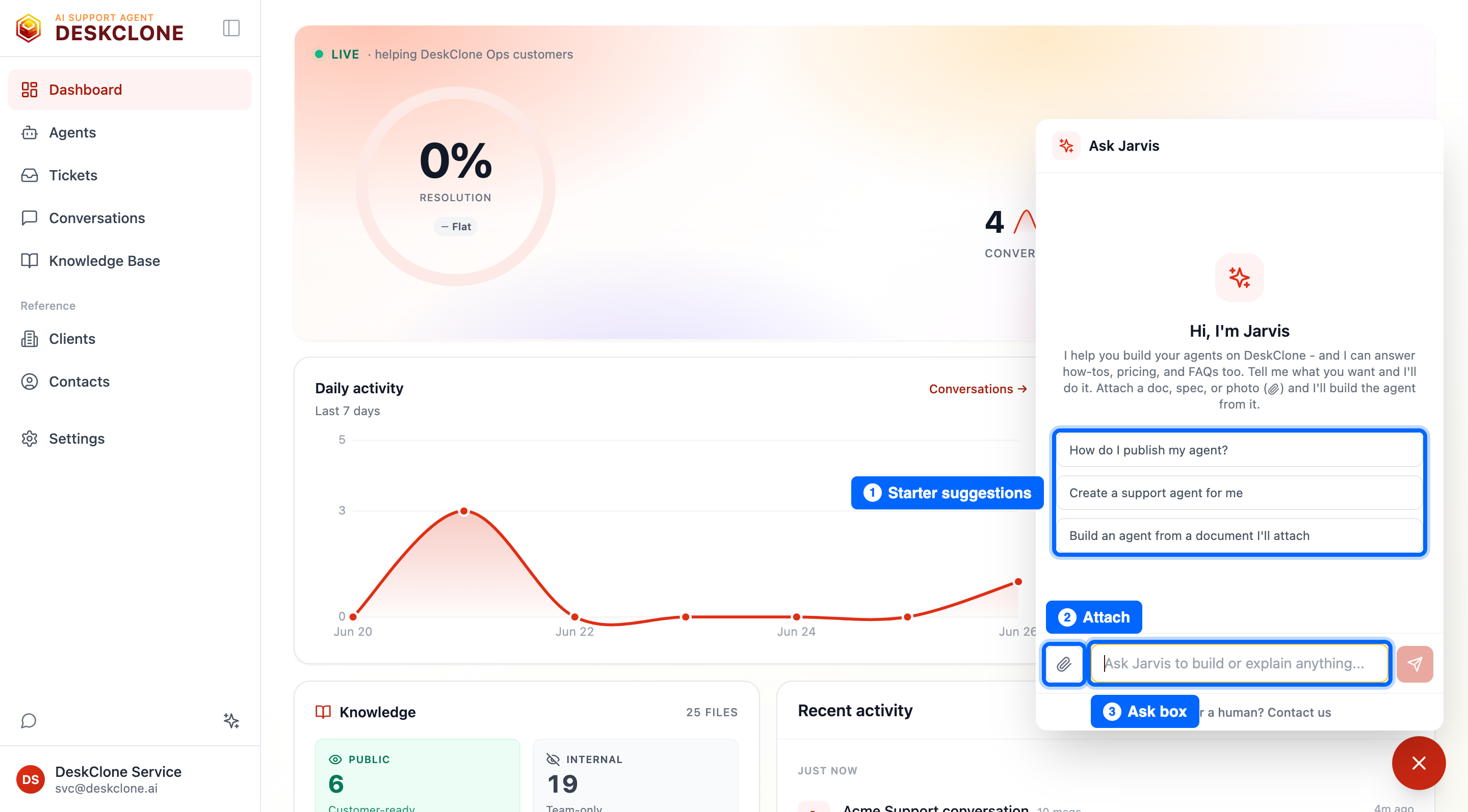
The Ask Jarvis chat panel open in the bottom-right corner, showing the greeting, starter suggestions, and the attach and send controls
You can type a question, click a suggestion, or attach a file - covered below.
Ask a Question
Jarvis answers questions about DeskClone - how to add your agent to your website, what plans cost, how knowledge works - straight from the product documentation. Ask in your own words.
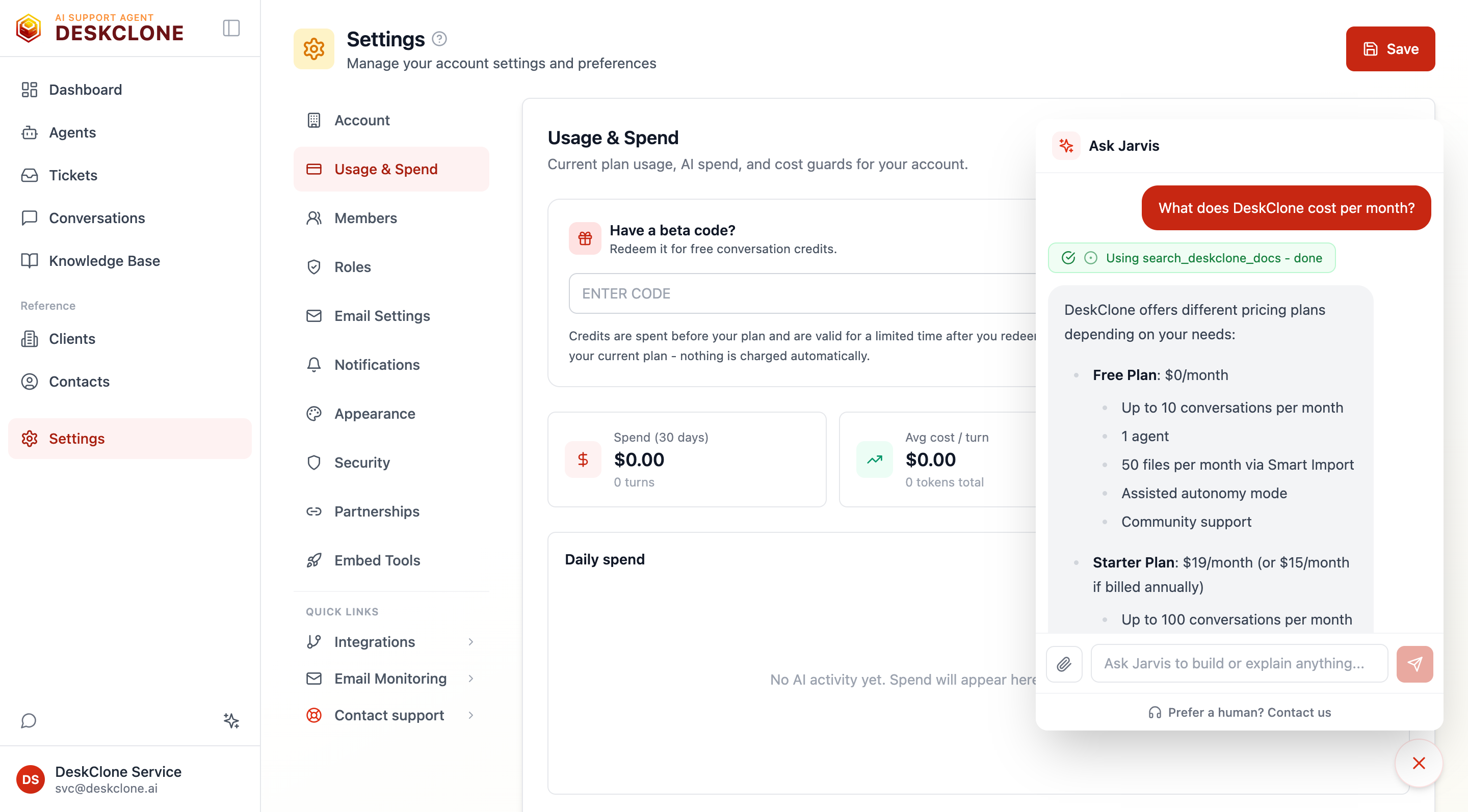
Jarvis answering a question about DeskClone pricing on its page, with the answer looked up in the DeskClone help
If Jarvis cannot find an answer in the docs, it says so - and often offers to just do the task for you instead.
Build and Configure an Agent
This is where Jarvis shines. Tell it what you want in plain language and it uses your workspace's real controls to make it happen.
Tell it about your business
Every workspace starts with an agent, so Jarvis configures that one - you never have to create it. Tell it what you do and what the agent should take off your plate: "We make booking software for physio clinics - I want the agent to handle login trouble, plan changes and billing questions." A shop works the same way: "I run Fernwood Home Goods, a small furniture store - orders, shipping and returns." Jarvis sets the personality and tone, and records your business name so the dashboard, emails and your agent's own Business name stop saying "Your Workspace" (a business name you typed on the agent yourself is never replaced).
Give it your website
Give Jarvis your store's or site's address - yourstore.com is enough - and it starts reading it, the same way Import does. Reading takes a few minutes. A line above the chat shows how far it has got (for example "Reading yourstore.com: 12 of 40 pages", then "Sorting what I read" and "Writing it up for your agent"), and you can keep talking to Jarvis meanwhile: set the tone, say where questions it can't answer should go, or attach your support guide. If a big site takes more than five minutes, the line says so; nothing is lost if you leave and come back. If you'd rather tick the files yourself, Let me pick from the list myself opens the list. When it finishes, the files from your site stay private until you choose which ones customers may get answers from. Tell Jarvis in your own words - "everything except pricing", or "anything about products, shipping and returns" - and it works out which files that means. A card under the chat shows the result, for example "34 files would answer customers. 6 stay private." Nothing is shared until you press Share 34 files with customers on that card, and you can undo it. Check the list opens every file in the chat's place, ticked the way Jarvis proposed, so you can change any tick yourself. Big sites are grouped by your site's own sections (Products, Blog, Policies), each with one tick for the whole section, and a search box appears once there are more than 20 files. You can keep typing to Jarvis while the list is open ("untick the blog too"), and the ticks follow. Nothing is shared until you press the button under the list. Your site's robots.txt and llms.txt are instructions for search engines, so they always stay private and aren't listed. Jarvis never shares files on its own, and it only reads an address you gave it in the chat.
You can also ask Jarvis to keep several files private at once ("keep the blog posts private"); that happens straight away and can be undone. Making files visible to customers always goes through the card.
Add anything your site doesn't say
Type your refund rules, plan prices, support hours, how a customer resets their password - anything a customer might ask that isn't on your site. Jarvis saves them as a note that customers can see in your Knowledge Base and tells you what it saved. That note is what the agent answers from; you will see it on the agent's Knowledge tab.
Refine it
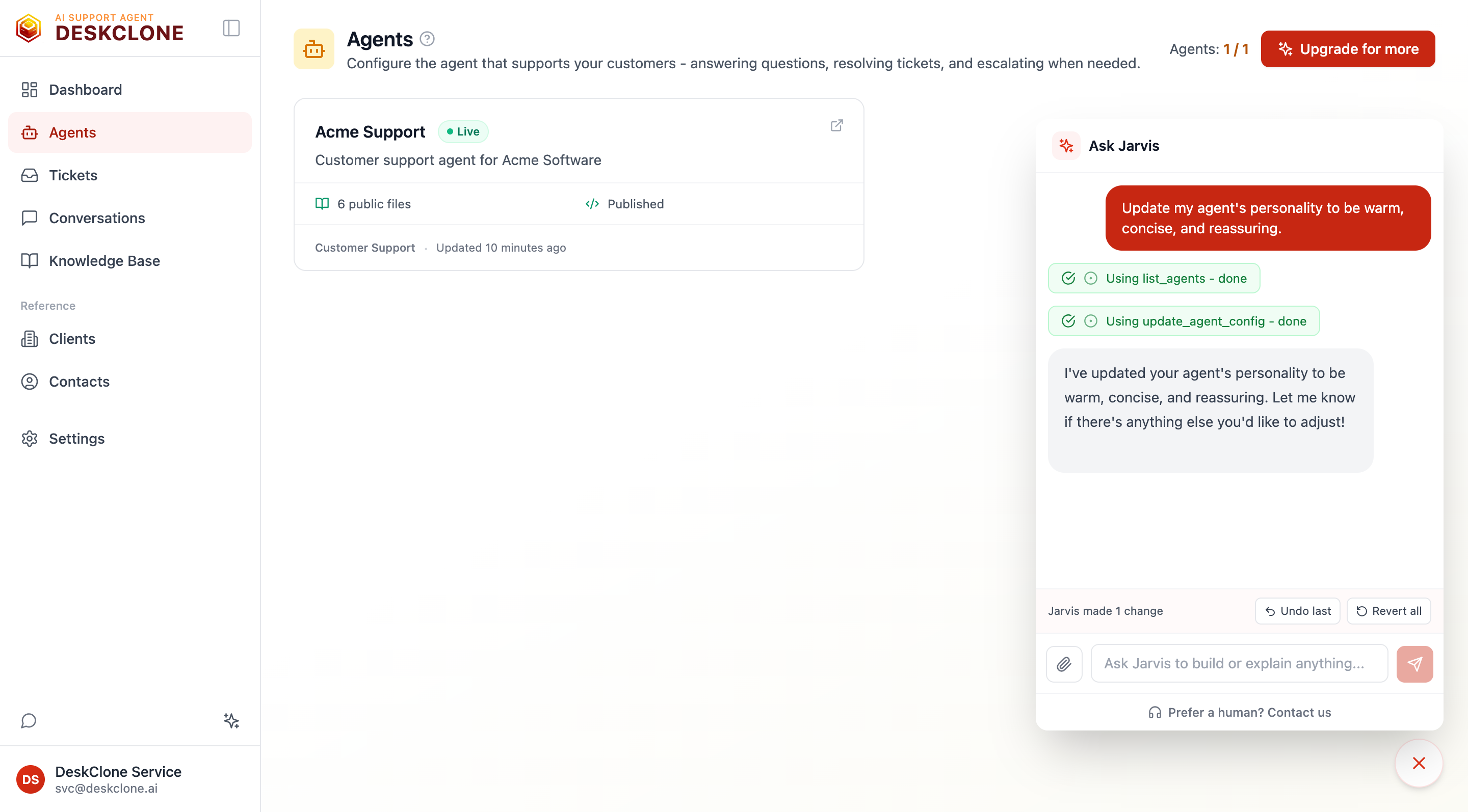
Keep going in plain language: "Make its personality more formal", "Set it to ask visitors for their email", or "Turn on knowledge search." Jarvis applies each change and confirms exactly what it did.
Jarvis can show an agent's current setup, rename and re-describe it, rewrite its personality and instructions, save what you tell it as knowledge, mark knowledge files Customers can see or Team only, set your business name, change whether it asks for a visitor email, tune its advanced settings (Creativity, Longest answer and the rest), switch its built-in tools on or off, and create an additional agent when you ask for one - all from the chat. Deleting an agent always waits for your tap on a card; Jarvis says up front when an agent can't be deleted, for example your last one.
Jarvis changing a ticket's priority, with the change named above its reply (1) and the Changes button counting it (2)
Changes apply immediately - Jarvis does not stop to ask for approval on each step, so a build flows in one go. The Undo controls below are your safety net.
One exception keeps you in charge of what your customers see. After Jarvis has read one of your documents or files in a conversation, a change to what customers see (your agent's greeting, personality, rules, name or handover address, your business name, or making a file visible to customers) waits for your tap. Jarvis shows a Make this change? card with the exact new words, and nothing changes until you press Make this change. Tap Why am I being asked? on the card to see what Jarvis read and why the change waits. This way, text inside a document can never change your agent on its own. The change still appears in the list with its own Undo.
A card works for 24 hours and says so ("Answer by October 28, 4:30 PM. After that it's cancelled and nothing changes."). After that its buttons stop and nothing changes; ask Jarvis again for a new one.
This covers the new abilities above too: accepting a suggested answer, changing something your agent learned, applying an import, changing a skill or the chat's settings, and restoring a file customers can see all wait for your tap after Jarvis has read a document or file. Some changes always wait for your tap, even when Jarvis has read nothing:
- adding a tool, or changing a tool's address, risk or who can use it
- changing an MCP server
- a skill that sends an email, because it always shows the address it will email
- the key card, where you type a tool's keys or connect an app. The keys go straight from your screen to your account, never through the chat.
- deleting tickets, contacts or a project, sending a reply to a customer, and erasing a visitor's data (see Your Helpdesk)
You can trust a "done" from Jarvis. If it ever says it changed something but the change didn't actually go through, it corrects itself in the same message - telling you plainly that your configuration is unchanged and to ask again (or check the relevant tab to see what is currently set). You will never be left believing a change happened when it didn't.
Change a Fact
When something changes, tell Jarvis in your own words: "Our returns window is now 60 days, not 30." Jarvis finds every place your knowledge says the old value (your website pages, files you uploaded, notes it saved), changes only the words that changed, and tells you where. Everything else on those pages stays as it was.
- If the old value means different things in different places (returns and exchanges, say), Jarvis asks you which ones change before it touches anything.
- If a place is your website, Jarvis also tells you that the site itself still shows the old value, with the page, so you can update it there. When you sync your website again, the page you changed keeps your version.
- If a place is a file you uploaded, your own copy of that file still says the old value; update it before you upload it again.
- Undo last puts every place back at once.
Build an Agent From a Document
If you already have a brief, a support playbook, a spec, an SOP, a spreadsheet, or even a photo of a process on a whiteboard, hand it to Jarvis and it builds the agent from it.
Attach the file
Click the paperclip in the chat and pick one or more files - PDF, Word, slides, spreadsheet, CSV, text, or an image. They appear as chips inside the box, above where you type, and the box asks what they are for.
Ask Jarvis to build
Say "Build an agent from this." Jarvis reads the document, infers the agent's purpose, tone, rules, and which tools it needs - from what the document actually says - and sets it up.
Let it learn the content too
Jarvis also imports the document into the agent's Knowledge Base, so the new agent does not just match the brief - it can answer from it.
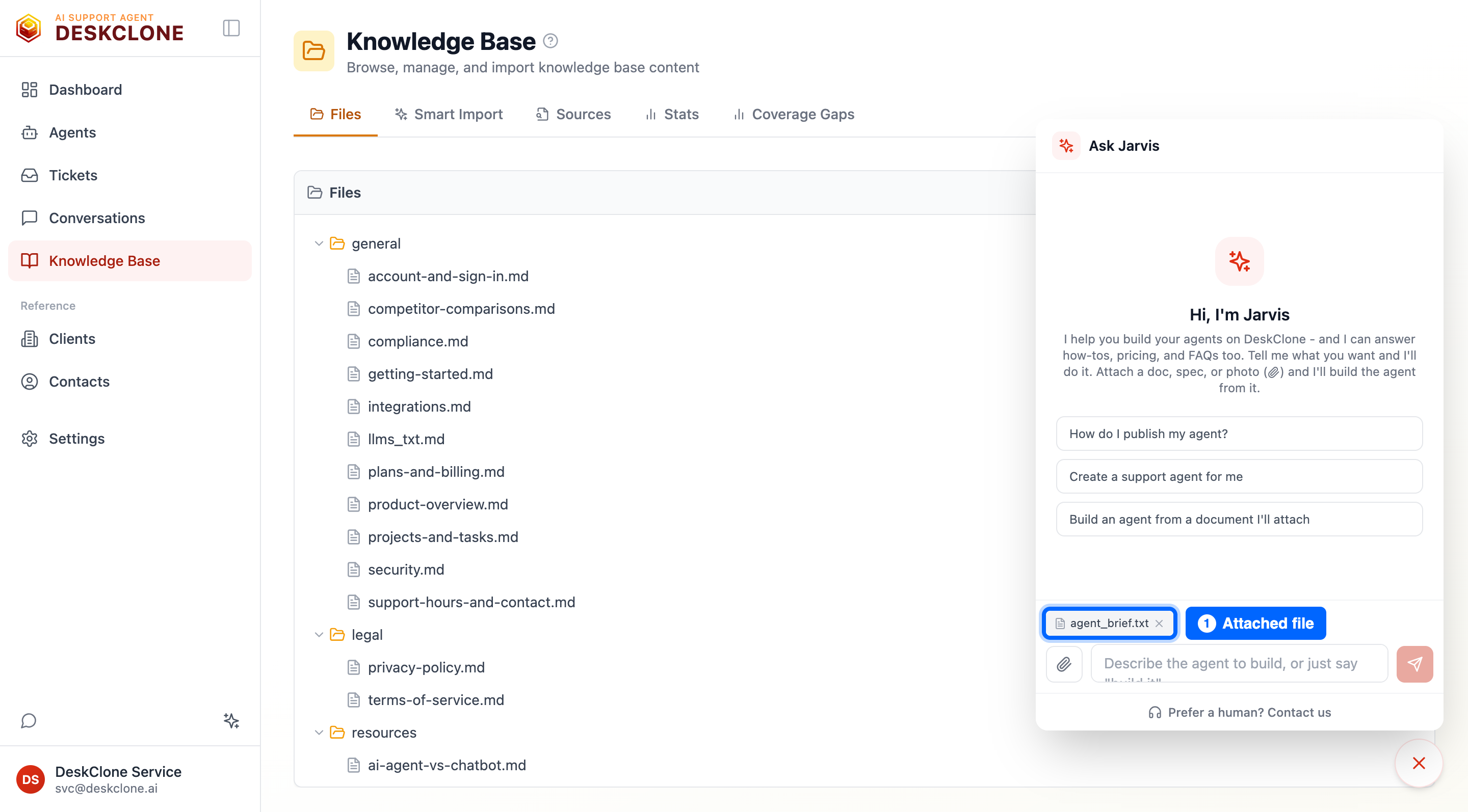
A document attached to the Ask Jarvis chat as a chip (1), ready to send so Jarvis can build an agent from it
There is nothing industry-specific about this - any document describing any kind of agent works. Jarvis reads yours and decides; it never assumes a template.
What Jarvis can do across your Knowledge Base and agents
Beyond building, Jarvis can look after what you already have. Ask in your own words; it looks at the list first, tells you what it found, then makes the change. Every change appears in the list of changes with its own Undo.
Knowledge Base
- Move or rename a file, move or rename a folder, or create an empty folder. A folder can hold up to 200 files for a move. Jarvis never replaces a file that is already at the new place: it tells you which file is in the way. A moved file keeps its sharing and archive state.
- Archive files, up to 200 at a time, or restore them. Restoring a file customers can see makes it available to customers again.
- Load the sample Knowledge Base to try a chat. Jarvis will not load it while any agent is on, because it would answer real customers with made-up content.
- Delete a file, or remove the sample Knowledge Base. Each waits for your tap on a card that names what goes, and can't be undone.
Suggested answers and what your agent learned
- Show the articles your agent suggested, read one in full, and accept, set aside (Later), bring back, or dismiss it. See Teaching Your Agent.
- Show what your agents have learned, change what one of those notes says, or turn one off or back on. Turning one off needs a reason.
- Show the questions your agent could not answer, mark each one To do, Answered or Ignored, sort them into topics (up to 50 at a time; ask again for the next batch), and draft an answer for one (up to 5 in a message). A draft goes to Suggested answers and adds nothing to your knowledge until you accept it.
Imports
- Show your imports and what each would create or update, then apply one. Jarvis applies only what the preview showed, and it never removes files that a re-sync marked as gone from your site: that stays your choice in the Jobs view. See Import.
- Turn automatic updates on or off for a source, and start an update now (once an hour for each source).
- Delete an import, revert a whole import (it removes the files that import created), or revert one change. Each waits for your tap on a card and can't be undone. If a file couldn't be removed, Jarvis names it so you can try again.
Agent settings
- Show an agent's change history, and put back what an earlier change replaced.
- Set the "If you run out of conversations" message visitors see, change what the chat asks visitors for before it starts, choose Knowledge Base files an agent ignores, and turn automatic Knowledge Base scope on or off. Which websites the chat may open on stays in the dashboard, under Where it shows.
Tools and skills
- Add a tool, and change a tool's address, how risky it is, or who can use it. Rename a tool or change its description. Change an MCP server, and refresh a connected app's tools. See Tools.
- Add, change or remove a skill.
- Set a tool's keys, or connect an app that needs them, on a card where you type the keys yourself. They never pass through the chat.
- Delete a tool or an MCP server, or test a tool. Each waits for your tap: a test sends a real request to your tool. Jarvis tells you whether the test worked, but never sees the tool's reply.
Undo is careful about what changed in between. If you changed the same thing yourself after Jarvis did, Undo keeps your version and tells you which one. If undoing a tool change would open the tool to more people than it is open to now, Undo keeps the current, narrower setting and says so.
Your Helpdesk: Tickets, Conversations, Contacts and Projects
Jarvis can work your helpdesk from the same chat, with the same rules as the dashboard: it can do only what your role can do on those pages, and it sees only the clients you can see. Something you may not open is "not found", and when your role can't make a change Jarvis says so in plain words. Jarvis loads this part of the platform when you ask for something in it. Nothing here needs a setup step.
Look things up. Ask for your open tickets, one ticket's thread, flagged conversations, your clients, your contacts or your projects. Jarvis answers with a count, at most 20 items, and a link to the same list in the dashboard. Customers' words are shown as quoted text, never followed as instructions.
Make changes you can undo. Change a ticket's status, subject, description, priority, client, project or resolution; assign a ticket to a team member or to yourself; restore a deleted ticket; create a ticket for a client; add a ticket's attachment to the Knowledge Base; flag, note or rate a conversation; add a client or a contact; choose which ticket statuses can be deleted for a client; create a project and change it. Each has its own Undo. Jarvis never overwrites a client or contact that already exists: it says it is already there and changes nothing. Details are in Managing Tickets, Conversations and Quality and Clients and Contacts.
Cards for what can't be taken back or reaches a customer. These always wait for your tap, whatever Jarvis has or hasn't read:
- Delete tickets. A Delete 3 tickets? card lists each ticket by subject and customer. Delete removes them together or not at all; Undo brings them back.
- Send a reply to a customer. Jarvis writes the reply; a Send this reply? card shows the address, the subject line, the inbox it goes from and the whole message. Nothing is sent until you press Send reply.
- Delete contacts (Delete 2 contacts?) and delete a project (Delete this project?). Both say what goes with them, and neither can be undone.
- Erase a visitor's data (Erase this visitor's data?), below.
A change with nothing to put back, such as a sent reply, a deleted contact or project, or an erased visitor, is still in the list of changes. It is marked No Undo, and Undo, Undo last and Undo all skip it.
Erasing a Visitor's Data
If a visitor asks you to erase what you hold about them, give Jarvis their email address: "Forget kerry@example.com". Jarvis does not erase anything yet. It puts an Erase this visitor's data? card on your screen that counts what is stored for that address: their chats with your agents, tickets, contact records, memories your agents learned, attachments and stored files, and the places in Jarvis's own chats, cards and list of changes where the address was typed. If nothing is stored for it, Jarvis says so and makes no card.
Press Erase for good to erase it, or Don't erase to close the card. This needs the same permission as changing your agent's settings, and it can't be undone. The erasure matches the address in any capitals. Their tickets stay for your records, with their name, address and text removed. The address is also removed from Jarvis's chats, including the one you typed it in, so Jarvis keeps no copy of it.
Ask About Your Numbers, Plan and Settings
Jarvis answers from the same numbers your dashboard shows, and links to the screen they come from:
- How your agents are doing - your dashboard's resolution rate, conversations, visitors, time saved and tickets resolved for the whole workspace, or one agent's quality for the last days you name. Trends and topics come with Pro and above.
- Your plan and billing - your plan, when it renews, conversations used and included this period, your Extra conversations pack and promo balance, and who bills you (DeskClone, Shopify or Wix). It can also list your invoices and the Extra conversations packs you can buy, at the price you pay.
- Your settings - how long chats are kept, who gets "running low" emails, the minutes counted per resolved ticket, each agent's answer quality, and your own email preferences.
Jarvis shows only what your role can see in the dashboard: a team member without billing access is told so.
Jarvis can also change the minutes counted per resolved ticket, an agent's answer quality and your own email preferences, and each change can be undone. Changing who gets "running low" emails always waits for your tap on a card that lists every address.
Your team is always your tap too. Ask Jarvis to invite a team member (with their role and clients on one card), change a role, remove or bring someone back, or partner with another business, and it shows a card first. More in Team & Permissions.
API keys, webhooks and your agent's Website code key work the same way: creating or deleting a key, adding, testing or removing a webhook, and replacing the Website code key each show a card first, and a new key or signing secret appears on that card once, never in the chat. More in Zapier, Make and API.
Connected inboxes and Google Drive too: connecting or signing in again opens the provider's sign-in in a new tab after you tap, and stopping checking, disconnecting, reading emails again from a date and importing past emails are cards. Starting checking again, checking now, senders, how often and what an inbox is for happen straight away, with Undo. More in Ticket Sources.
Money is always your tap. Ask Jarvis to upgrade or change your plan, open Manage card and invoices (to change your card, see invoices or cancel), buy an Extra conversations pack or redeem a promo code, and it puts a card on your screen that says exactly what pressing it will do: open checkout or Manage card and invoices in a new tab, upgrade now with a prorated charge, or switch at your renewal date with nothing charged today. Jarvis never charges you or changes your plan by itself. More in Account & Billing.
Jarvis can also change what your connected apps let your agent do, and their limits. Making a setting safer happens straight away; letting your agent do more always waits for your tap on a card. What Jarvis can change for each app is in Tools. For Shopify order changes, Jarvis can tell you which changes are on and what each one risks, turn each one on or off, set its limits and whether it waits for your approval, pause them all, and lift or restore a block. It never changes an order itself.
Turn It On and Get Your Website Code
A new agent starts on, so you only need this after you turned it off. Ask Jarvis to "Turn it on" (with more than one agent, name it: "Turn Returns bot on"). Jarvis turns it on straight away, and Undo in the list of changes turns it off again. What on means depends on where your agent is:
- Not on your website yet: your customers can't chat with it until you add its code to your website. Turning it on gives you the code to add and a link to try it. Jarvis replies with both, and the agent's Share tab has the steps for your website's platform.
- Its code is already on your website: it starts answering shoppers there straight away.
If Jarvis thinks your agent is ready but you haven't asked, it shows a Turn on button instead, and nothing is turned on until you press it. A question such as "Should I turn it on?" never turns anything on. On is not Live yet: the agent is Live once it has opened on your own website, and Jarvis says so only then. If the agent has no public knowledge yet, Jarvis will not turn it on, and the Share tab will not show its code (customers would only get handovers); Jarvis offers to save what you have told it as knowledge first. Ask it to "Turn it off" at any time: Jarvis shows a card, and your agent goes off when you press Turn it off; Undo turns it back on.
Build Allowance
Talking to Jarvis never uses up your customer conversations. Every plan includes a separate Build allowance (how much you can ask Jarvis to build each month) - capacity for building and configuring agents, refreshed automatically through the day. Most users never notice it exists.
If you build a lot in a short stretch, Jarvis lets you know before anything stops:
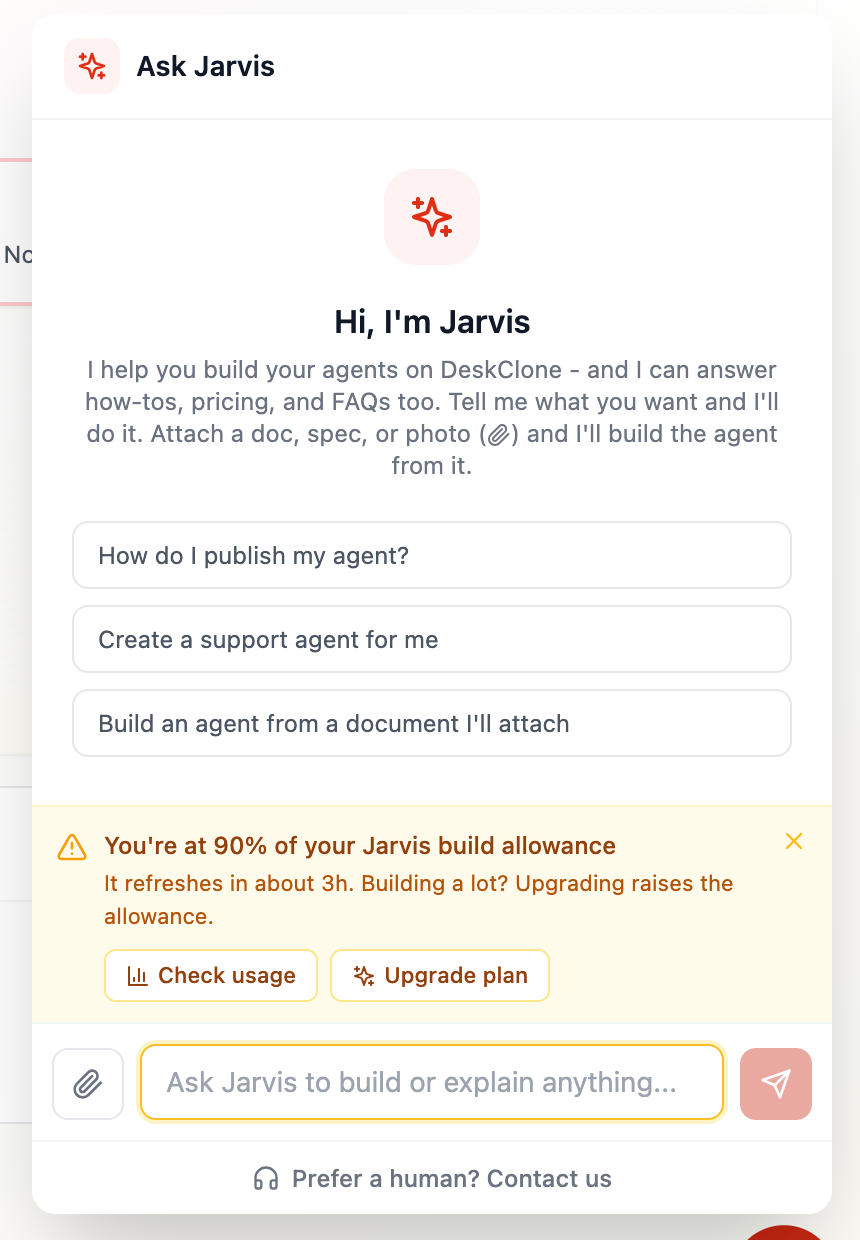
The Ask Jarvis chat showing an amber notice that 90 percent of the build allowance is used, with Check usage and Upgrade plan buttons
- Around 85% used - an amber heads-up appears in the chat with Check usage and Upgrade plan buttons. You can dismiss it and keep building.
- At 100% - Jarvis pauses new build work until the allowance refreshes. Your conversation and agents stay exactly as they are.
You can check how much of the allowance is left anytime - ask Jarvis directly, or open Settings > Plan and billing and look at the Build allowance card.
Blocked mid-build? Use the contact link in the notice and we will lift the allowance for you right away. Upgrading your plan raises it permanently.
Undo
Because Jarvis applies changes immediately, it gives you a clear way back. Once Jarvis has changed something, the Changes button at the top of the page shows how many changes this chat made. It opens a panel beside the chat, the way Preview does, with every change, oldest first, like the chat itself:
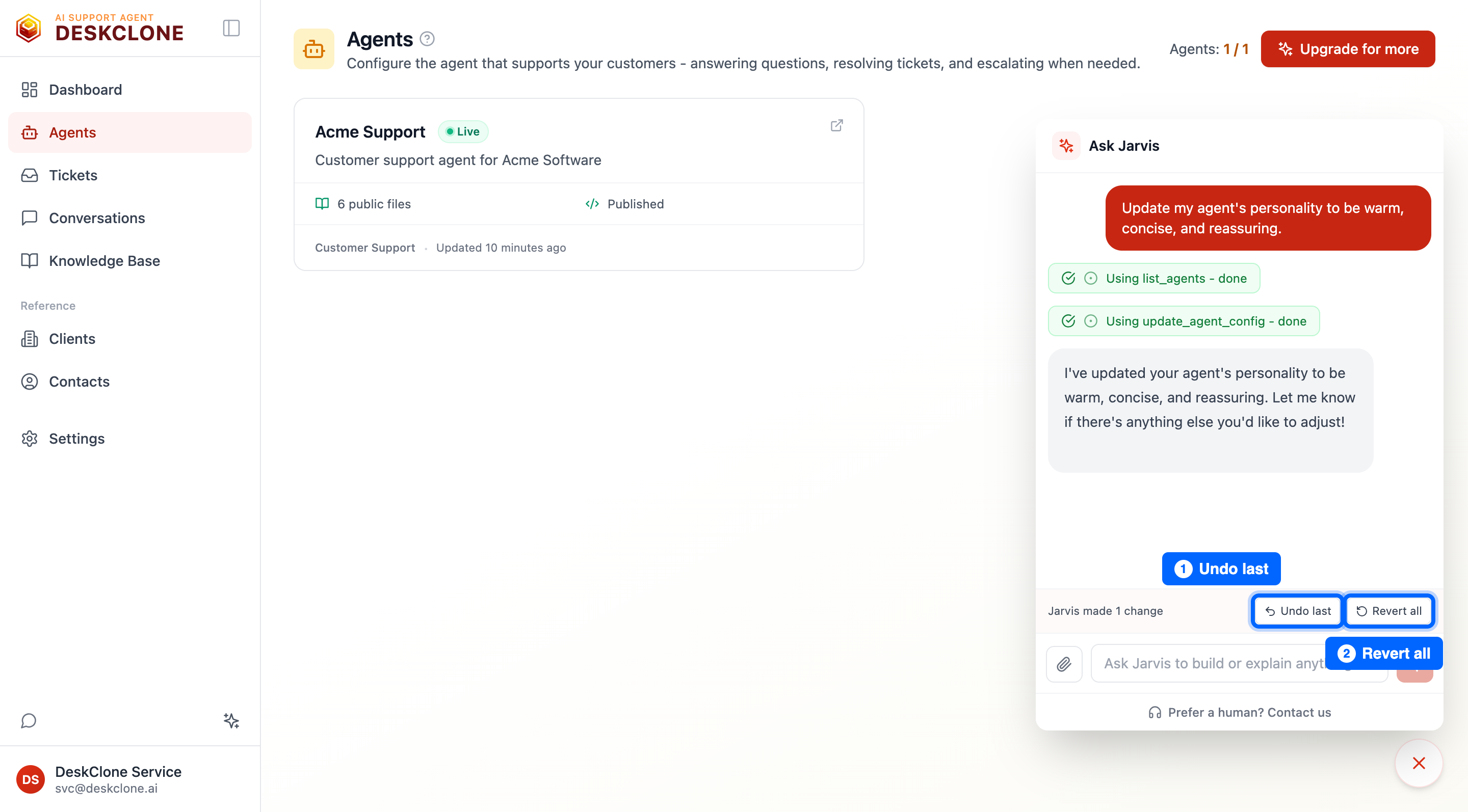
The Changes panel beside the chat: Undo on a change (1), and Undo all asking once before it undoes them (2)
- Undo on any change - each change in the panel says what changed, when, which agent (when you have several) and where to see it, with its own Undo. If something changed the same thing after it, Undo asks you to undo that later change first.
- Undo last - reverses the most recent change only. Use it when one step went wrong. When one message changed a fact in several places, that counts as one change, and Undo reverses all of those places together; the line names it, for example "Updated returns window, in 3 places". If one of those places changed again after Jarvis's edit, Undo leaves it as it is and says so.
- Undo all - shows how many changes it will undo (Undo all 3), and appears once there are at least two. It asks once in the same row ("Undo all 3?"); press Yes, undo all, and the panel says "Undone: every change in this chat". If something changed again after Jarvis's edit, Undo all leaves it as it is and says so, along with anything it could not undo.
Each of these buttons says what it does when you hover over it.
A change that can't be taken back (a sent reply, a deleted contact or project, an erased visitor) shows in the list marked No Undo, with no Undo button; Undo last and Undo all leave it alone. The count on Changes includes it.
A conversation with Jarvis belongs to the person who started it. Team Members can read it, but only that person can continue it or undo its changes. Jarvis also follows your role: if your role can't change your knowledge, Jarvis can't add files or change what your agent shares for you, and if your role can no longer change an agent's settings, you can't undo a change to them either.
Undoing a website Jarvis started reading stops the reading if it is still going, or removes the files it added if it finished. Importing a document you attached is a larger background job and is not part of this one-click Undo: to remove it, open Knowledge Base and revert the import from the Jobs view.
What's Next
Jarvis can build the whole thing for you, but it helps to know the pieces it is setting up. Head to Knowledge Base to learn how the content your agent answers from is organized.
Was this page helpful?