DeskClone on WordPress
If your site runs on WordPress, the DeskClone AI plugin does the whole job from inside wp-admin: it creates your account, reads your site, builds your agent and puts the chat bubble on your pages.
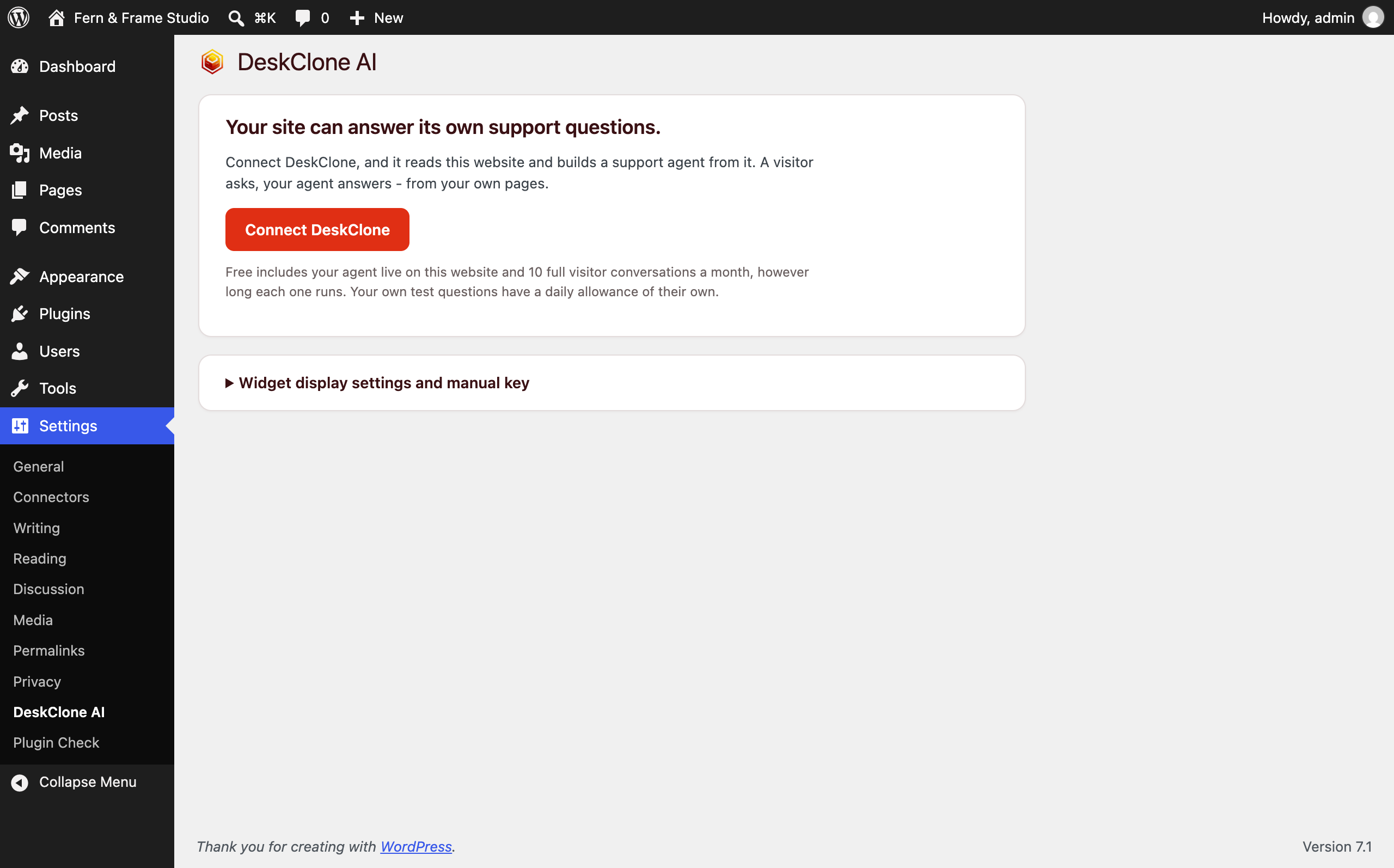
The DeskClone AI settings page in wp-admin with the Connect DeskClone button
Get it live
Install and connect
Install DeskClone AI from Plugins > Add New, open Settings > DeskClone AI, and click Connect DeskClone. Sign in or create your account in the window that opens (Google works), and approve the site.
Build from your site
Click Build my agent from this website. DeskClone reads your most important pages first - navigation, front page, policy pages. The screen shows the build honestly: in line (with your place), building (with progress), live, or the exact reason something failed.
It goes live on its own
When the build lands, the widget appears on your site automatically: the key installs itself and this site is added to your agent's allowed websites. Quiz it in the plugin's Try your agent panel first. Test questions have a daily allowance of their own and never use your monthly conversations.
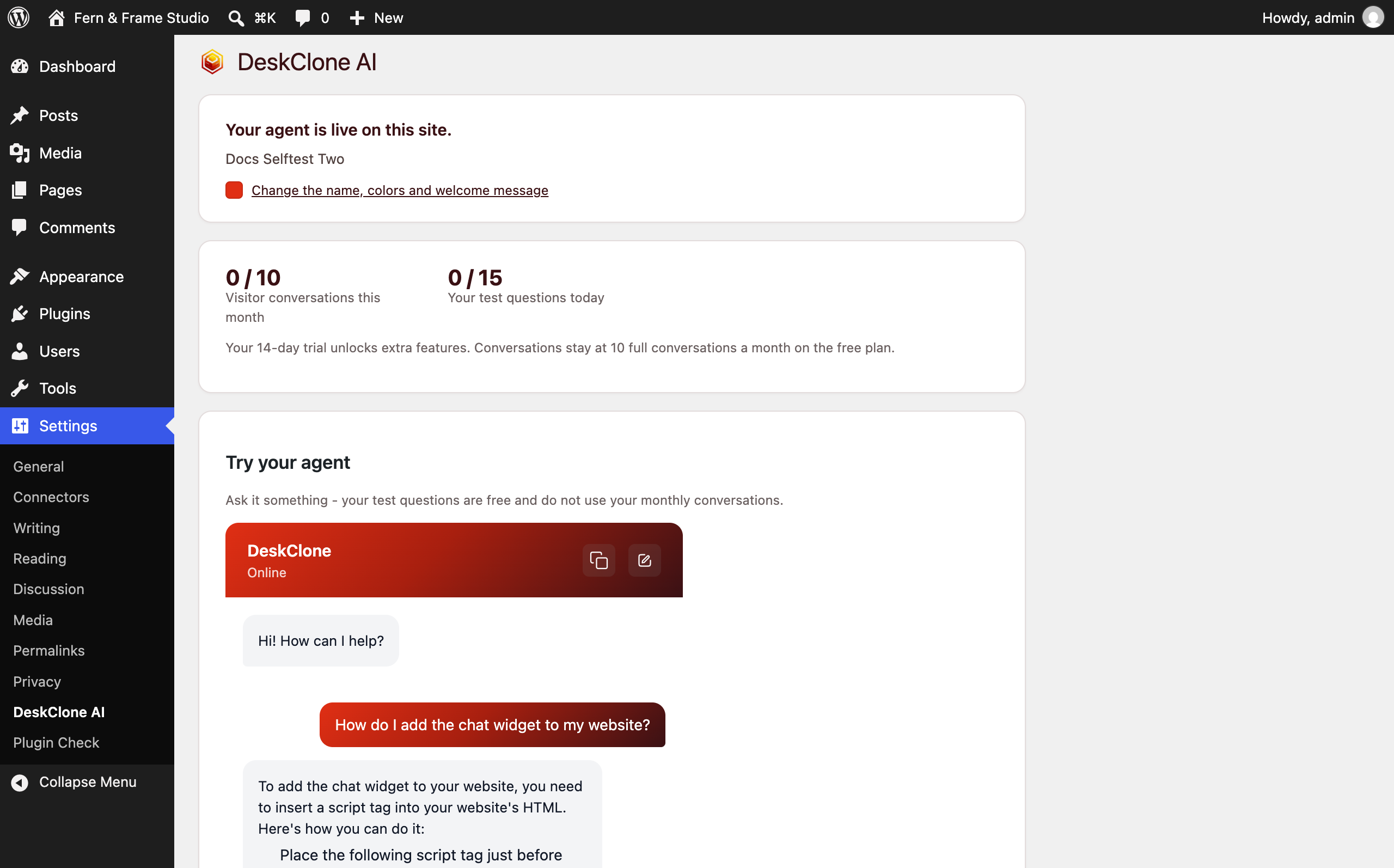
The plugin page saying your agent is live, with visitor conversations used, test questions today and the Try your agent panel
Your numbers
Once live, the plugin keeps you posted one thing at a time: how many visitor conversations you have used this month, how many test questions you have used today (counted separately), and a link to change the name, colors and welcome message. The free plan includes your agent live on your website and 10 visitor conversations a month.
Keep it up to date
Updated your site? Click Teach it your latest pages and the agent re-reads it without going offline. Everything else (name, welcome message, colors, allowed websites) lives in DeskClone under Share; see Embed Widget. Changes apply to your WordPress site straight away.
Already have an agent?
The manual path still works. Open Widget display settings and manual key in the plugin, paste the connection key from your Share tab, tick Show the widget, and save. Page rules (for example, keep it off checkout), floating or inline layout, and the corner choice live in the same place.
When something goes wrong
If a build can't run, the screen says exactly why and what to try next, and Try again puts things back in place. See Troubleshooting for more.
What's Next
- Embed Widget: change how the bubble looks and where it appears
- Knowledge Base: see what your agent learned from your site
- Account and Billing: plans and usage
Was this page helpful?