Ticket Sources
Ticket sources are the channels that create tickets for your team. However a request arrives, it lands in the same queue. There are three:
- Email monitoring - new emails to your support inbox become tickets
- Support form - a form visitors fill out on your website
- Widget escalation - when your agent cannot resolve a chat, it hands off as a ticket
Open Tickets > Sources in the sidebar to set them up.
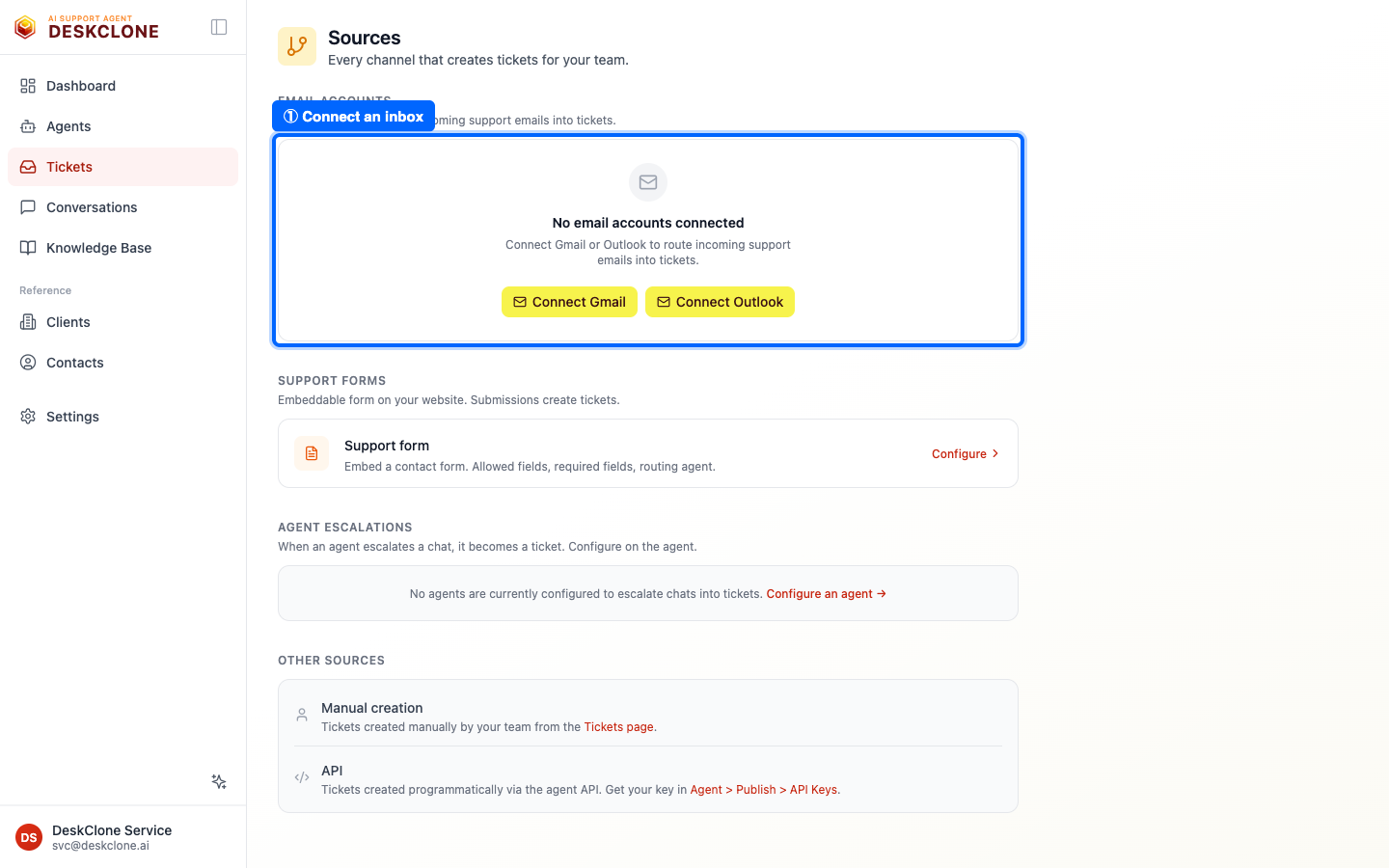
The Ticket Sources page showing email account connections and the form and widget escalation sources
You do not need all three. Start with the channel your customers already use, and add more later.
Email Monitoring
Connect your support inbox and DeskClone checks it for new mail. Each new email becomes a ticket - subject as the title, body as the description - and replies on the same thread stay grouped in that one ticket. Your support email stops piling up and becomes a trackable queue.
Connect Your Inbox
Go to Tickets > Sources
Open Tickets > Sources in the sidebar.
Connect your provider
Click Connect Gmail (or Connect Outlook) and sign in. DeskClone asks for read-only access - it never sends, deletes, or changes your email.
Set who can create tickets
Add allowed senders - the addresses or domains that should create tickets. Leaving this empty lets every email through, so a sender filter is worth setting.
Gmail and Outlook work exactly the same way and appear in the same list, so you can connect both. You can also set how often DeskClone checks for new mail (the poll interval); the default suits most teams.
What Lands on the Ticket
Each synced email brings its full context onto the ticket, not just the text:
- The whole thread - every reply is added as it arrives, including the ones your team sends from the connected mailbox, so the ticket always shows both sides.
- Cc recipients - everyone copied on a message is shown on that message, even if they never reply.
- Attachments - PDFs, documents, spreadsheets, and images are stored with the ticket. Text is extracted automatically so the AI assistant can read them, and each file gets a one-line summary so you can see what it is at a glance. Scanned documents with no text layer are marked "scanned - preview only": you can view them, but the assistant cannot read them yet. Files over 20MB are listed but not stored - open those in your mailbox.
- The original email - DeskClone shows a clean text version in the conversation, and keeps the original HTML behind a View original button for when formatting, tables, or inline images matter. Remote images stay blocked until you choose to load them.
When a Connection Expires
Now and then an email connection needs re-authorizing - you will see a red Auth Expired badge on the account. Click Reconnect on that account (not "Connect Gmail" at the top, which adds a new account) and sign in again. All your settings are kept. See Troubleshooting if you get stuck.
Support Form
The support form is a contact form you add to your site. A visitor fills in their name, email, subject, and description, and it creates a ticket - the same as any other. It uses the agent and connection key you already published, so there is nothing extra to set up. Find its code under Tickets > Sources > Forms.
Widget Escalation
When a visitor is chatting and your agent cannot help further, it can hand off to your team. The visitor gets a smooth "let me connect you with someone" instead of a wrong answer, and a ticket is created with the full chat history attached.
You decide what "hand off" does on the agent's Behavior tab - any combination of:
- Create a ticket for your team
- Email a specific address
- Custom action that calls one of your connected tools
The same tab also lets you set a support email and response window your agent can promise ("someone will reply within 4 hours"), a custom escalation message for how it hands off, a fallback message for when the AI is unavailable, and behavior rules - conditions that should always trigger a hand-off.
Your own systems
Want your own tools to ask your agent questions, add knowledge, or be told when a conversation starts or is handed to a human? That lives under Settings > Developers and is documented in the Developer API guide. Creating tickets from incoming events is still to come.
What's Next
Now that requests are flowing in, learn how to work through them in Managing Tickets.
Was this page helpful?