Knowledge Base
Your knowledge base is the content your agent answers from. The rule is simple: better content means better answers. When a visitor asks something, your agent searches your knowledge base, finds the relevant part, and writes a natural reply based on what it finds. If the answer is not there, it honestly says so instead of guessing.
New agents automatically use everything in your knowledge base, so you can focus on adding good content and let your agent keep up.
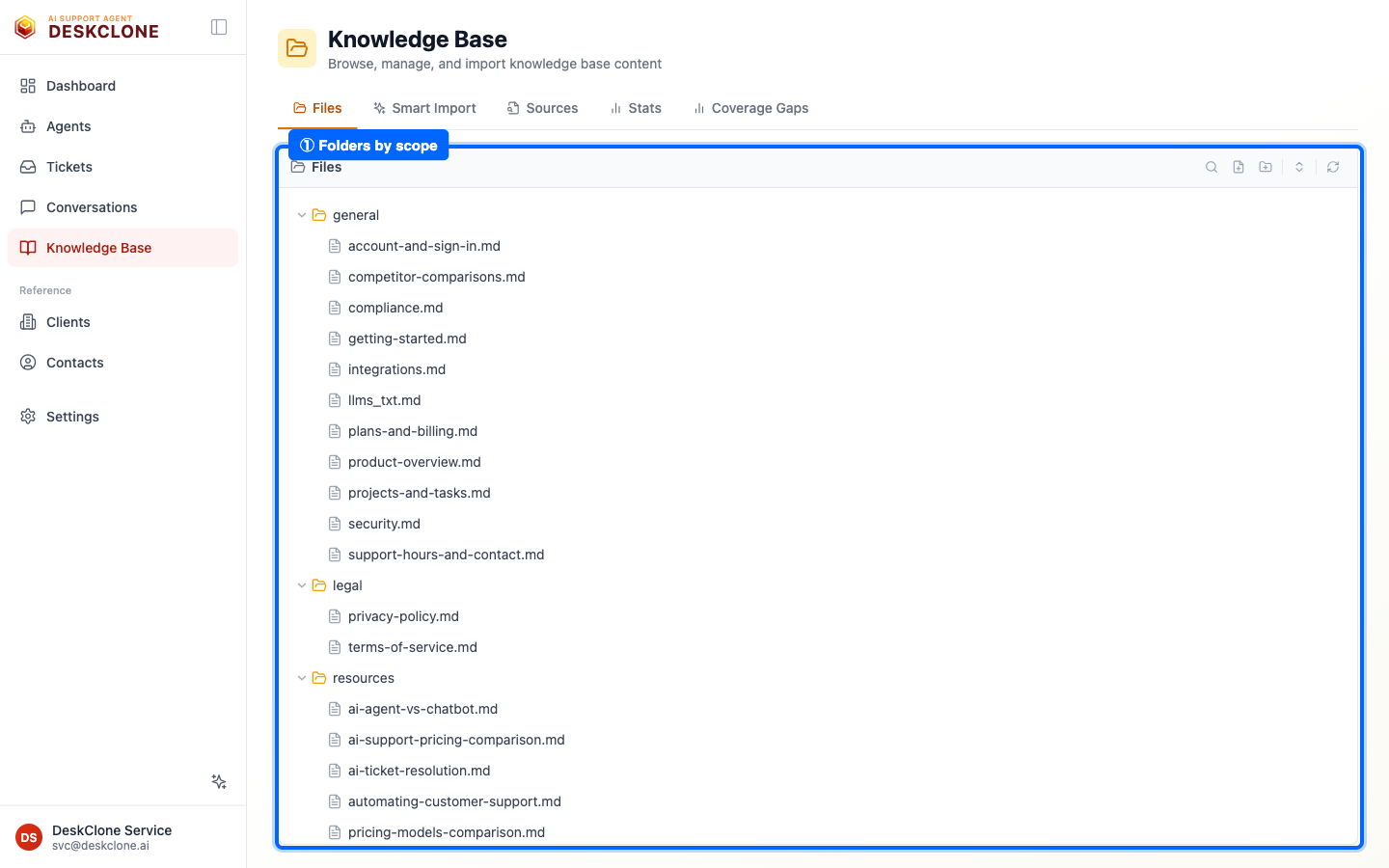
The Knowledge Base Files tab showing the Add a file button, the tab row, and the Smart Import tab
Think of the knowledge base as your best support agent's memory. If a great human agent would need that information to help someone, it belongs here.
Try It with Sample Content
Not ready to add your own content yet? Load a ready-made sample knowledge base and watch your agent answer real questions in seconds - before you upload anything.
Open an empty Files tab
On a new account, the Files tab shows a Try with sample content option beneath the import button.
Load the sample
Click Try with sample content. A small demo knowledge base for a fictional store loads instantly and is marked public, so your agent can use it right away.
Chat with your agent
Open your agent's Test tab and tap one of the suggested starter questions (like "What is your return policy?") to see it answer straight from the sample content.
Sample content is clearly labelled demo data. A banner stays at the top of your Knowledge Base while it is loaded, with a one-click Remove sample content button.
Remove the sample content before you publish your agent, so it answers from your knowledge and not the demo store. The Publish screen reminds you if any sample content is still loaded.
Add a File
Open Files
Go to Knowledge Base in the sidebar and open the Files tab.
Create a new file
Click Add a file and give it a clear name, like "Return Policy."
Write and save
Write your article with headings and short paragraphs, then click Save. It is indexed and ready immediately.
Already have content elsewhere? Smart Import pulls it in from files, Google Drive, Notion, a website, or email - and cleans up the formatting for you.
Organize and Control Access
Two settings decide who can see each file:
- Knowledge source - General content is available to the widget and your team; per-client content is for your team only, on tickets for that client.
- Visibility - Public files can be used in widget answers; Internal files are for your team's eyes only.
So a file is usable by the public widget only when it is in a general source and marked public. Use internal/per-client for things like escalation steps or sensitive notes. Freshly imported files start as Internal: on your agent's Knowledge tab, choose Make all public in the banner to switch everything at once, or flip an individual file's Public/Internal pill.
Credentials Are Redacted Automatically
If a file contains a password, API key, or similar credential, it is redacted the moment the file is saved - stored and processed as a placeholder like <REDACTED_SECRET_1>, with the real value kept encrypted. When you open the file yourself, you see the real value; your agent's answers and the AI models only ever see the placeholder. There is no setting to get wrong - this is always on.
If your agent cannot find an answer you know exists, this is the usual reason - check the file is in a general source and set to public.
Archive Files You Want to Keep but Not Use
Some files should stay on record without being used - an old version of a policy, a superseded price list. Right-click a file and choose Archive: it stays in your knowledge base, but no agent will use it in any answer, for customers or for your team, and it drops out of every agent's file counts. Archived files show a gray Archived tag. Right-click and Restore from archive to bring one back - it is re-indexed and usable again within moments.
This is different from marking a file Internal (your team still uses Internal files) and from removing it from one agent's selection (other and future agents would still use it). Archive means: keep it, use it nowhere.
Write Content That Answers Well
How you write has a direct effect on the answers your visitors get. A few habits that help most:
- Use clear headings. Break content into sections - your agent matches questions to headings.
- Phrase headings as questions people actually ask, like "How long does shipping take?"
- One topic per article. A focused "Returns" article beats one giant "Returns, Shipping, and Billing" page.
- Write plainly, the way you would explain it to a colleague. No need to write "for AI."
- Keep it current. When a policy changes, update the article - your agent always uses the latest version.
The Stats tab gives you a quick overview of your files and sources, and Coverage Gaps (see Conversations and Quality) tells you exactly what to write next based on real visitor questions.
What's Next
If you have existing content to bring in, head to Smart Import. If you would rather get your agent live first and add content as you go, jump ahead to Embed Widget.
Was this page helpful?