Embed Widget
The widget is a chat bubble in the corner of your website. When a visitor clicks it, they can ask questions and get instant answers from your knowledge base - without leaving your page. This is the moment your agent goes to work for you, around the clock.
A visitor asks a question and the agent answers instantly from your knowledge base.
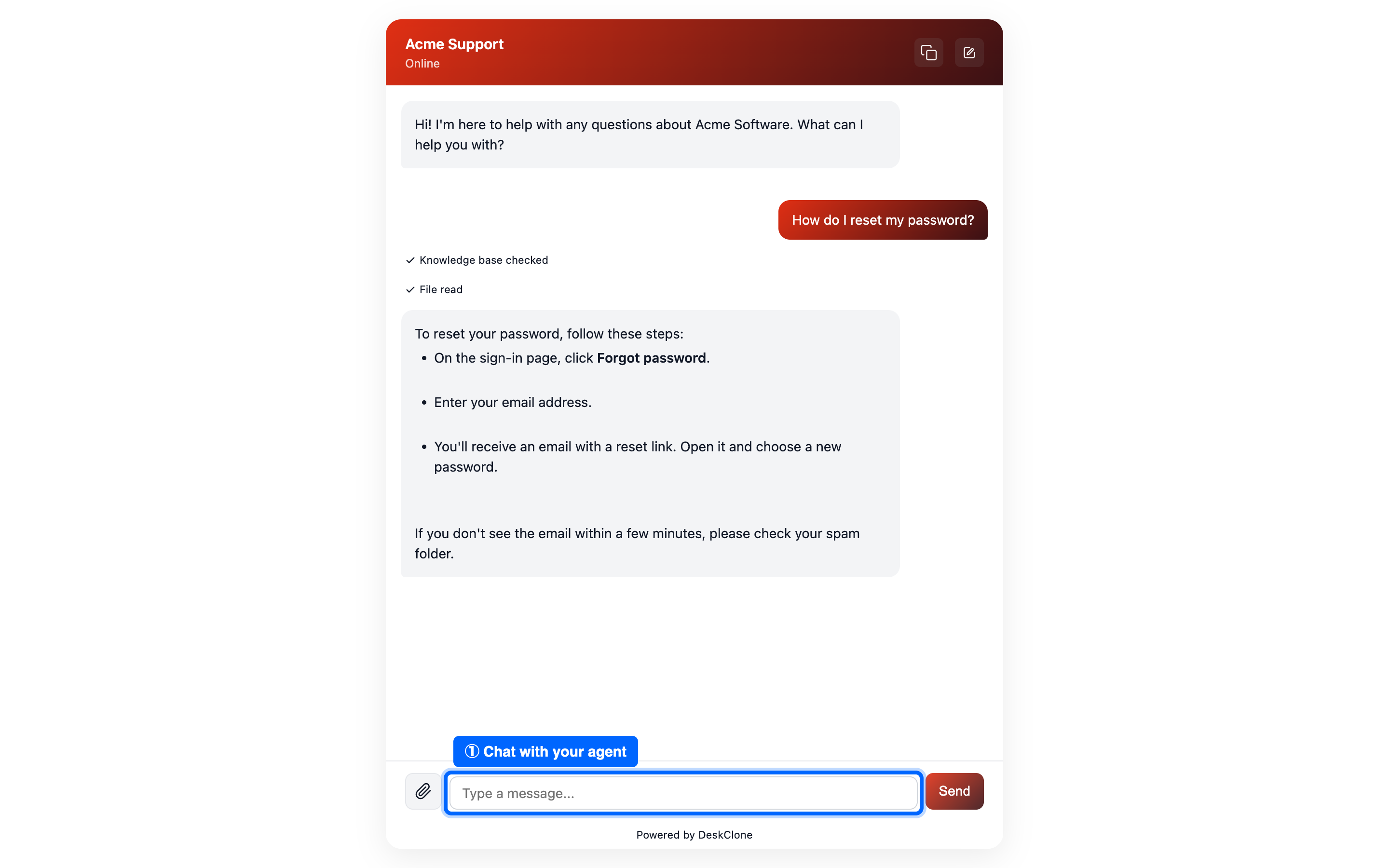
The DeskClone chat widget as a visitor sees it, with the agent's welcome message and a message input box
Publish and Get Your Website Code
Open your agent's Share tab
Go to Agents, click your agent card, and open the Share tab.
Set the look
On the Appearance sub-tab, set your display name, welcome message, and brand color.
Publish
On the Publish & share sub-tab, click Publish agent. If the agent has no public knowledge yet, a checklist tells you what to add first.
Copy the code
Your website code appears right there with your key filled in, and is copied to your clipboard for you. Come back any time: the key is hidden after you leave the page, and Show key fills it in again. Regenerate key is only for replacing a key that is already on your website.
Open the Share tab to see your published agent and copy the ready-to-paste embed snippet.
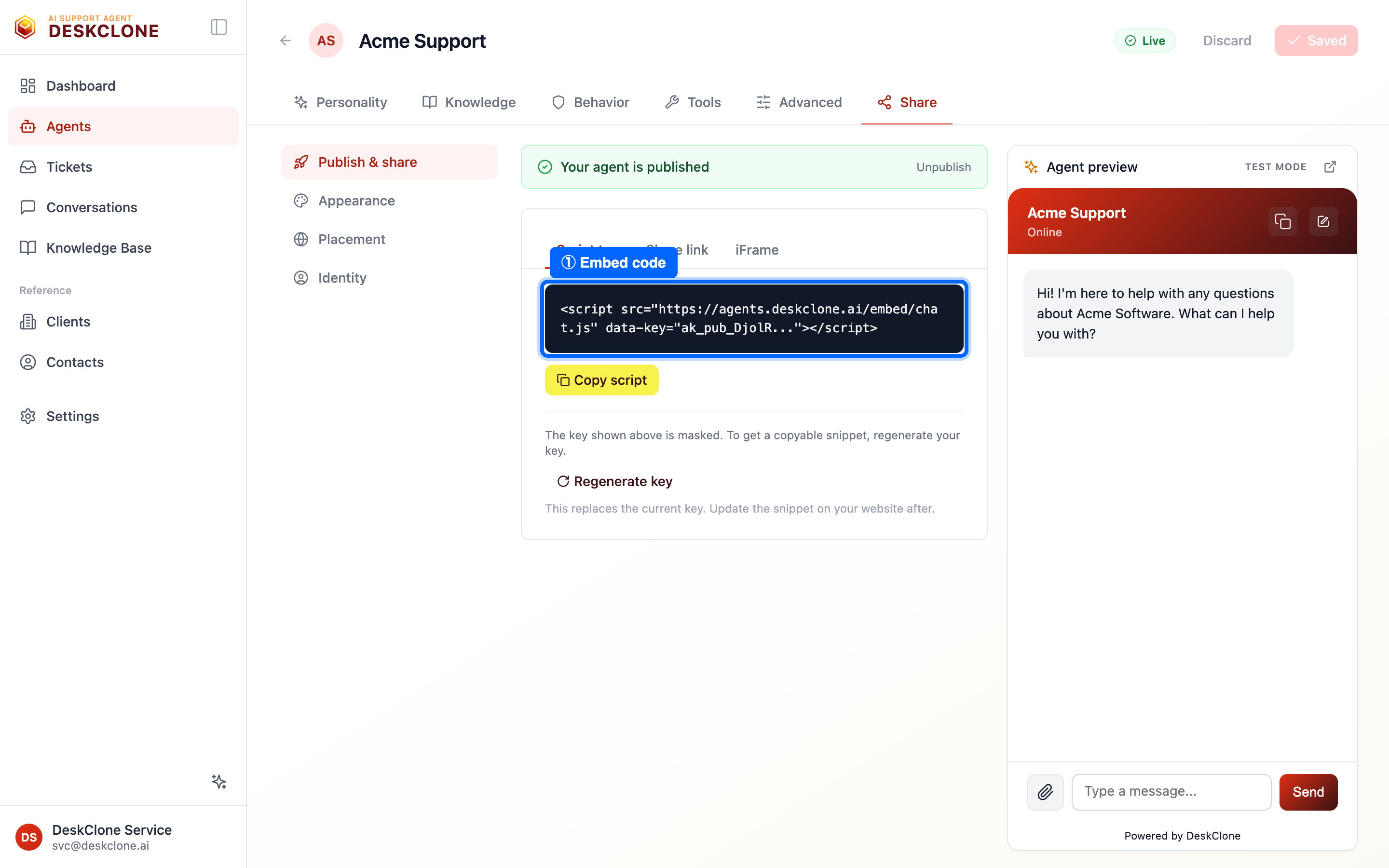
The Share tab's Publish and share view showing the published state and the embed script snippet
Add It to Your Website
Paste the script tag into your website's HTML, just before the closing </body> tag:
<script
  src="https://agents.deskclone.ai/embed/chat.js"
  data-key="your-connection-key-here"
></script>
That is all most sites need - the widget loads on its own and does not slow your page down.
A few other options are on the Share tab if you need them:
-
Share link (
https://agents.deskclone.ai/chat/your-slug) - a full-page chat you can send in an email or share with your team while testing. -
iFrame - embeds the hosted full-page chat inside a fixed-size frame on your page.
-
Inline - mounts the chat directly inside an element of your own page (no floating bubble, no iframe) - ideal for a dedicated "Support" or "Help" page. Drop in a container and point the script at it with
data-mode="inline":html<div id="deskclone-chat" style="height:600px;max-width:480px;"></div> <script src="https://agents.deskclone.ai/embed/chat.js" data-key="your-connection-key-here" data-mode="inline" data-container="#deskclone-chat" ></script>
WordPress
If your site runs on WordPress, the DeskClone AI plugin does the whole thing from inside wp-admin - including creating your account and building the agent.
Install and connect
Install DeskClone AI from Plugins > Add New, open Settings > DeskClone AI, and click Connect DeskClone. Sign in or create your account in the window that opens (Google works), and approve the site.
Build from your site
Click Build my agent from this website. DeskClone reads your most important pages first - navigation, front page, policy pages - and the screen shows the build honestly: in line (with your place), building (with progress), live, or the exact reason something failed.
It goes live on its own
When the build lands, the widget appears on your site automatically - the key installs itself and this site is added to your agent's allowed websites. Quiz it in the plugin's test panel first: test questions have a daily allowance of their own and never use your monthly conversations.
The plugin keeps you posted afterwards, one thing at a time: how many visitor conversations you have used (your own tests counted separately) and where to change the look. Updated your site? Click Teach it your latest pages and the agent re-reads it without going offline.
Already have an agent? The manual path still works: open Widget display settings and manual key in the plugin, paste the connection key from your Share tab, tick Show the widget, save. Page rules (keep it off checkout), floating or inline layout, and the corner choice live in the same place.
Everything else - name, welcome message, colors, allowed websites - stays here in DeskClone under Share, and changes apply to your WordPress site straight away.
Shopify
If your store runs on Shopify, the DeskClone AI app does the whole thing from inside your Shopify admin - including creating your account and building the agent from your store's own policies, pages and products.
Install and connect
Install DeskClone AI from the Shopify App Store and open it from Apps in your admin. Click Connect DeskClone, then sign in or create your account in the window that opens (Google works). Your store is linked to that account and the window closes on its own.
Build from your store
Click Build my agent. DeskClone reads your refund, shipping and terms policies first, then your pages, then your products - the things shoppers actually ask about - and the screen shows the build honestly: in line, building, live, or the exact reason something failed and what to do about it.
Turn it on in your theme, then try it
When the build lands, the card says Built and ready and offers one button, Turn it on in your theme. It opens your theme editor with the DeskClone AI app embed already switched on; press Save, open your store once, and the card changes to Live on your store on its own. It only says live once it has actually seen the widget on your store. Test your agent on the same card opens the widget right there, in test mode: test questions have a daily allowance of their own and never use your monthly conversations.
The app keeps you posted afterwards, one thing at a time: how many visitor conversations you have used (your own tests counted separately) and where to change the look. Your store's name on the card is a link to it. Updated your store? Click Teach it your latest pages and the agent re-reads it while it keeps answering. Products reach the agent only when they are active and published to your online store, with their price and whether they are in stock, so it never offers something a shopper cannot buy.
DeskClone reads only your store's published content - never your customers or orders - so there is nothing to approve beyond the install itself. The app is free; the free plan includes your agent live on this store and 10 visitor conversations a month, and upgrades happen in your DeskClone account, not through Shopify billing. Uninstalling the app switches the widget off; your DeskClone account and agent stay exactly as they were, so reinstalling picks up where you left off.
Everything else - name, welcome message, colors, allowed websites - stays here in DeskClone under Share, and changes apply to your storefront straight away.
Customize the Look
On the Appearance sub-tab you can set:
- Display name - shown in the widget header
- Welcome message - the first thing visitors see
- Primary color - the header and send button
- Position - which corner the bubble sits in
Changes save instantly - you do not need to touch the script tag on your website again.

The Appearance sub-tab showing the primary color picker and a live preview of the widget
File and Photo Attachments
Visitors can attach files and photos right in the chat - images (JPEG, PNG, GIF, WebP), PDFs, and text or Markdown files. Your agent reads images as part of the conversation, so a visitor can show a screenshot of an error or a photo of a product and get help with it.
Visitor Ratings
Every answer carries thumbs up / thumbs down buttons - always visible on the newest answer (including on phones) and on hover for earlier ones. These ratings feed the Satisfaction number on your Quality dashboard, counted per conversation so one unhappy chat is one unhappy chat, no matter how many messages it rated.
The "Powered by DeskClone" Badge
By default the widget shows a small Powered by DeskClone badge. On Pro and Business plans it is hidden automatically, so visitors see only your brand.
Placement and Identity
Two more Share sub-tabs fine-tune the widget:
- Placement - which corner the floating bubble sits in (bottom-right by default), which of your pages it appears on, and optionally which websites may show your agent. Leave the websites list empty to allow any site; your share link and preview always work.
- Identity - the name and avatar your agent shows in the chat header.
Before You Go Live
A quick checklist:
- Your agent has a personality description
- Your knowledge base covers your most common questions
- You have previewed the agent or opened the share link and had a real conversation
- Your brand color and welcome message are set
- Your agent is published
You do not need a perfect knowledge base to launch. Start with your top 10-20 questions and grow from there. Your agent will honestly say "I don't know" for anything it cannot answer - far better than a confident wrong answer.
What's Next
If the widget does not appear or conversations fail, the Troubleshooting guide walks through the common fixes (connection key, script placement, allowed domains).
Your widget is live. Next, connect your support inbox so emails become tickets too - head to Ticket Sources.
Was this page helpful?