Advanced Agent Settings
Most teams never need this tab - the defaults are tuned to work well, and a strong personality description does most of the shaping. Reach for the Advanced tab once you have watched a few real conversations and want to nudge a specific behavior. Everything here is optional, and anything you leave blank falls back to the platform default.
Open it from Agents > your agent > the Advanced tab.
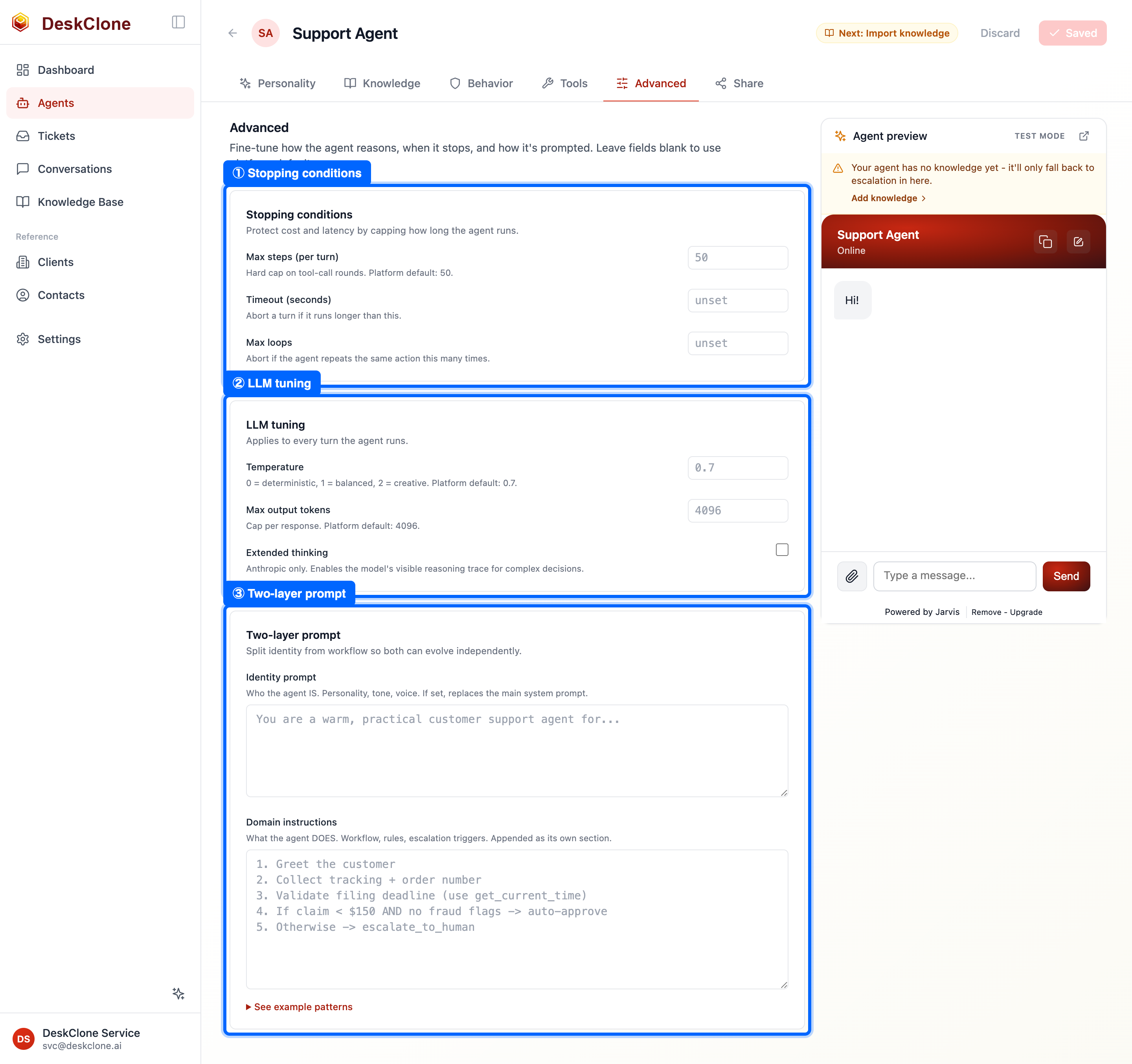
The agent Advanced tab showing stopping conditions, response tuning, and custom instruction fields
Response Quality
Response quality sets how much reasoning power this agent brings to each customer conversation:
- Best reasoning - for complex, multi-step, or sensitive conversations. The most capable model.
- Balanced - the most efficient choice for everyday support. The default.
- Fast - the quickest replies for simple questions and lookups.
Each option names the model it runs on. The choice applies to this agent only, so you can run a billing agent on Best reasoning and a store-hours agent on Fast. Higher levels may be part of a paid plan - a locked option tells you which plan unlocks it. Want to run your agent on your own model provider and API key? Contact us about bring-your-own-key.
Stopping Conditions
Your agent can take several steps in a single turn - search your knowledge base, call a tool, then write its answer. Stopping conditions cap how far it goes, to protect speed and cost:
- Max steps (per turn) - the hard cap on tool-call rounds (platform default: 50). Raise it if your agent gives up before finishing multi-step tasks; lower it for faster, simpler replies.
- Timeout (seconds) - end a turn if it runs longer than this.
- Max loops - stop the agent if it repeats the same action too many times.
If you are not sure, leave these blank - the defaults suit normal support.
LLM Tuning
These apply to every turn:
- Temperature - how creative the wording is, from 0 (deterministic) to 2 (creative); the default 0.7 is balanced.
- Max output tokens - the cap on how long a reply can be (default 4096). Raise it if answers get cut off; lower it to keep replies brief.
- Extended thinking - lets the model show its reasoning on complex decisions (Anthropic models only).
For support, lean toward a lower temperature. Customers want a correct, consistent answer far more than a creative one.
Instructions
The most powerful setting here splits your agent's prompt into two layers:
Your agent's system prompt is assembled in layers: its personality (the System prompt on the Personality tab), the platform's built-in conduct rules, and the Domain instructions you write here - no layer replaces another.
- Domain instructions - what the agent does: workflow, rules, and escalation triggers (for example: "Confirm the order number before discussing a refund; if a claim is over $150, escalate to a human"). This is added as its own section on top of everything else.
Most teams only need one or two firm rules here. A See example patterns link offers ready-made starting points. Guidance tied to a specific skill belongs on the skill itself (the Skills tab) - it travels with the skill and disappears when the skill is removed.
These settings change how your agent behaves, so test after editing. Use the preview panel to run a few real questions - including ones your agent should refuse or escalate - and confirm it still responds the way you expect before you publish.
What's Next
With your agent configured the way you want, it is time to put it on your site. Head to Embed Widget to publish and install the chat widget.
Was this page helpful?