Managing Tickets
Tickets are the core workflow in DeskClone. Whether they come from email monitoring, the support form, widget escalation, or manual creation, tickets are where your team tracks and resolves support requests. DeskClone helps by searching your knowledge base, suggesting responses, and drafting resolutions - but your team stays in control.
Ticket List Overview
Navigate to Tickets in the sidebar to see your ticket list. Each ticket shows:
- Subject - the subject line (from email) or a summary of the request
- Client and Reporter - who the request is for and who raised it
- Status and Priority - where it stands and how urgent it is
- Source - how it arrived (email, chat, form, manual, or API)
- Assignee - which team member owns it
Click any ticket to open its full detail view. You can filter tickets by status, search by keyword, and sort by date or priority.

The ticket list showing multiple tickets with status badges, assignees, and source indicators
Ticket Statuses
Every ticket moves through a lifecycle as your agent and team work it:
- Received - a new ticket has arrived
- Analyzing - your agent is investigating and drafting a response
- Awaiting Approval - the agent has a proposed reply or action waiting for your OK
- Executing - an approved action is being carried out
- Resolved - the ticket is handled
- Failed - the agent could not complete it, so it needs a person
Status changes are logged, so you can see exactly how a ticket was handled.
Working with a Ticket
Click any ticket in the list to open the detail view. You will see:
- Ticket information - title, description, source, timestamps
- Conversation history - the full thread of messages, including the original email or widget conversation. Email messages show their Cc recipients, and a View original button opens the email exactly as it was sent (remote images blocked until you load them).
- Attachments - files from the email thread or widget chat, each with a one-line summary. Click one to preview it (images, PDFs, and text render in place); the preview also offers Download and, for documents worth keeping, Promote to KB, which sends the file through the standard Knowledge Base import flow.
- DeskClone assistant panel - where you can ask DeskClone to help investigate and draft a response
Using the Assistant to Help
The DeskClone assistant panel on the ticket detail page is where the AI does its work. You can:
- Ask questions - "What does our return policy say about international orders?"
- Request a draft response - "Draft a reply explaining how to reset their password"
- Investigate - "Search our knowledge base for information about this error code"
- Read attachments - "What does the invoice they attached say?" The assistant reads the extracted text of email attachments page by page, so even long documents are covered. Scanned files with no text layer are the one exception - the assistant will tell you to open the preview instead of guessing.
DeskClone searches your knowledge base, finds relevant content, and writes responses based on what it finds. You review the output before anything is sent to the customer.
Use the /scope ClientName command in the assistant to focus its search on a specific client's content. This is useful when different clients have different procedures.
The assistant reports failures honestly. If a lookup or action it runs doesn't succeed, that step shows failed instead of a green check - it is never dressed up as done. When the assistant works through a multi-step plan, a step that didn't succeed is marked failed in the plan view, and at the end the session tells you which steps didn't complete so you can run /retry on them. A session only reports Completed when every step actually succeeded.
Approvals
When the assistant suggests actions that affect external communication (like sending a response to a customer), it may request your approval first. This is the approval workflow - DeskClone proposes, you approve.
Approval cards appear in the assistant panel with a clear description of what the action will do. You can:
- Approve - let DeskClone proceed with the action
- Reject - decline and optionally give different instructions
- Edit - modify the proposed response before approving
When the assistant proposes a knowledge base update (something it learned during the ticket that it wants to save), the approval card shows the exact change as a before/after comparison against the current article. Long changes collapse to the first 40 lines - open View full diff to see everything, which is also what enables the Approve buttons for large changes, so nothing big gets approved unseen. You can edit the proposed text right in the card before approving; your edited version is what gets saved, attributed to you. Knowledge updates always ask each time or per ticket session - there is deliberately no "always allow" for changes to your knowledge base.
The approval workflow is available on Pro and Business plans. On Free and Starter plans, DeskClone assists with investigation and drafting, but automated actions are not available.
Ask DeskClone Anytime
Beyond the per-ticket panel, your team has a general assistant at Ask DeskClone - a team chat linked from the Conversations page. It is a private staff assistant that searches your knowledge base and client information to answer your team's own questions: "What's our refund procedure?", "How did we onboard this client?", "How do I reset a password?"
It keeps a history of your chats, offers suggested prompts to get started, and supports the same /scope ClientName command to focus on one client. It is separate from the customer-facing widget - this one is just for your team.
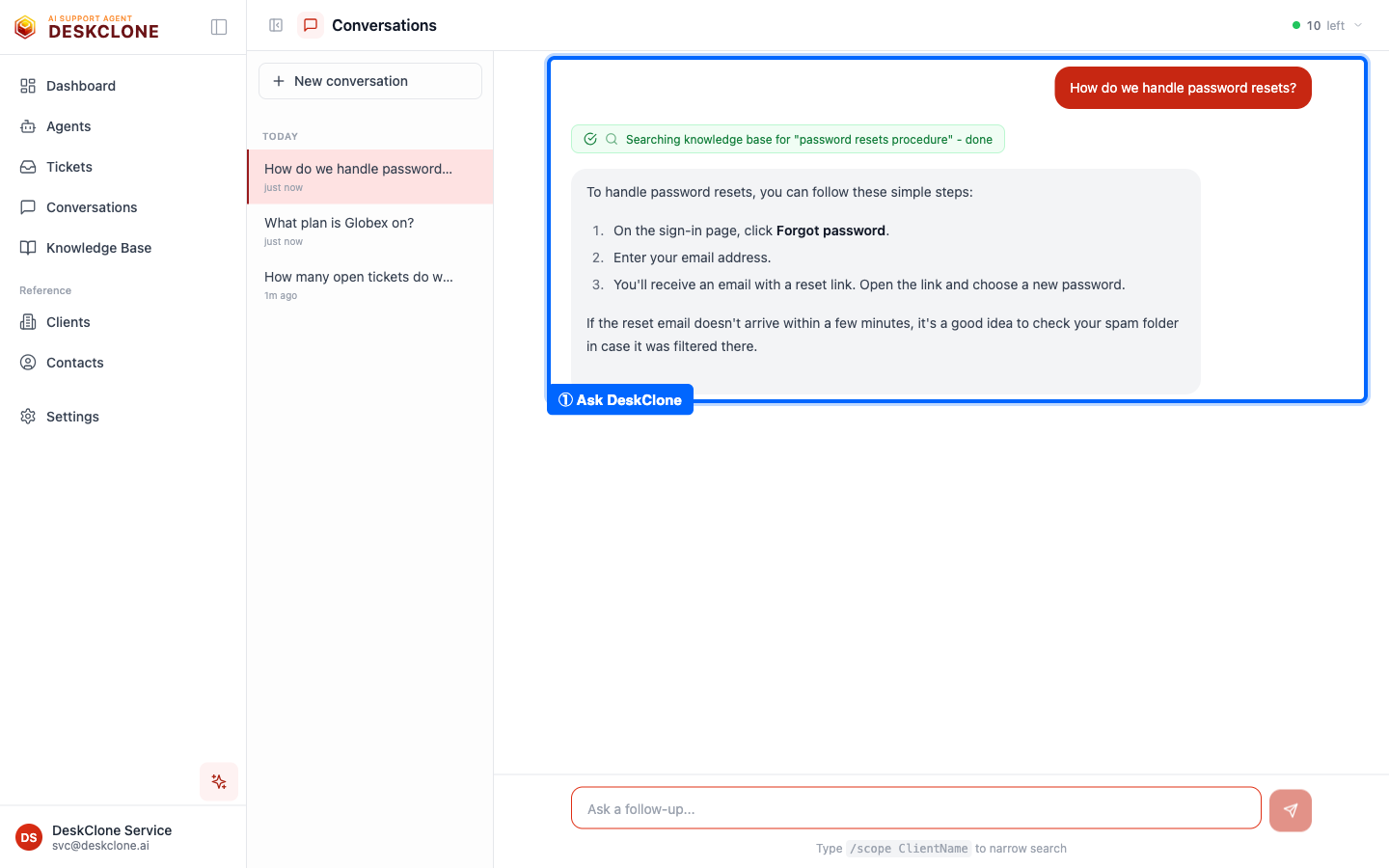
The Ask DeskClone team chat with conversation history, suggested prompts, and a message input
Assigning Tickets
You can assign tickets to specific team members:
Open the ticket
Click on the ticket in the list to open the detail view.
Set the assignee
Use the assignee dropdown to select a team member. They will see the ticket in their filtered view.
Set the priority
Set the ticket's priority so your team knows what to pick up first.
Creating Tickets Manually
Not all tickets come from email. You can create tickets manually for requests that come in through other channels (phone calls, Slack messages, in-person conversations):
- Click the New Ticket button on the Tickets page
- Add a title and description
- Assign it to a team member or leave it unassigned
- DeskClone can then help investigate and resolve it, just like any other ticket
Escalations
Tickets created by widget escalation carry extra context from the chat - a short summary and a reason code that tell you why your agent handed the conversation off. You can review escalations alongside your other tickets and prioritize them by urgency.
Filtering and Searching
The ticket list supports:
- Status filter - narrow to, say, Awaiting Approval or Resolved tickets
- Priority and source filters - focus on what is urgent or on a particular channel
- Search - find tickets by keyword in the subject or description
- Assignee filter - show tickets assigned to a specific team member
Use these to manage your queue efficiently, especially as your ticket volume grows.
What's Next
Tickets from the widget create conversations that you can review separately. Head to Conversations and Quality to learn about monitoring your widget's performance and your agent's response quality.
Was this page helpful?