Tools and Integrations
By default, your agent answers questions from your knowledge base. Tools let it do things too - look up an order, check a shipment, create a ticket, or call your own systems. You choose exactly which tools your agent can use on the Tools tab of the agent configuration page.
How Tools Work
When your agent is in a conversation, it decides - based on the visitor's question - whether a tool would help. If you have enabled a "look up order" tool, the agent can call it, read the result, and use it in its answer. You stay in control of which tools exist and what they are allowed to do.
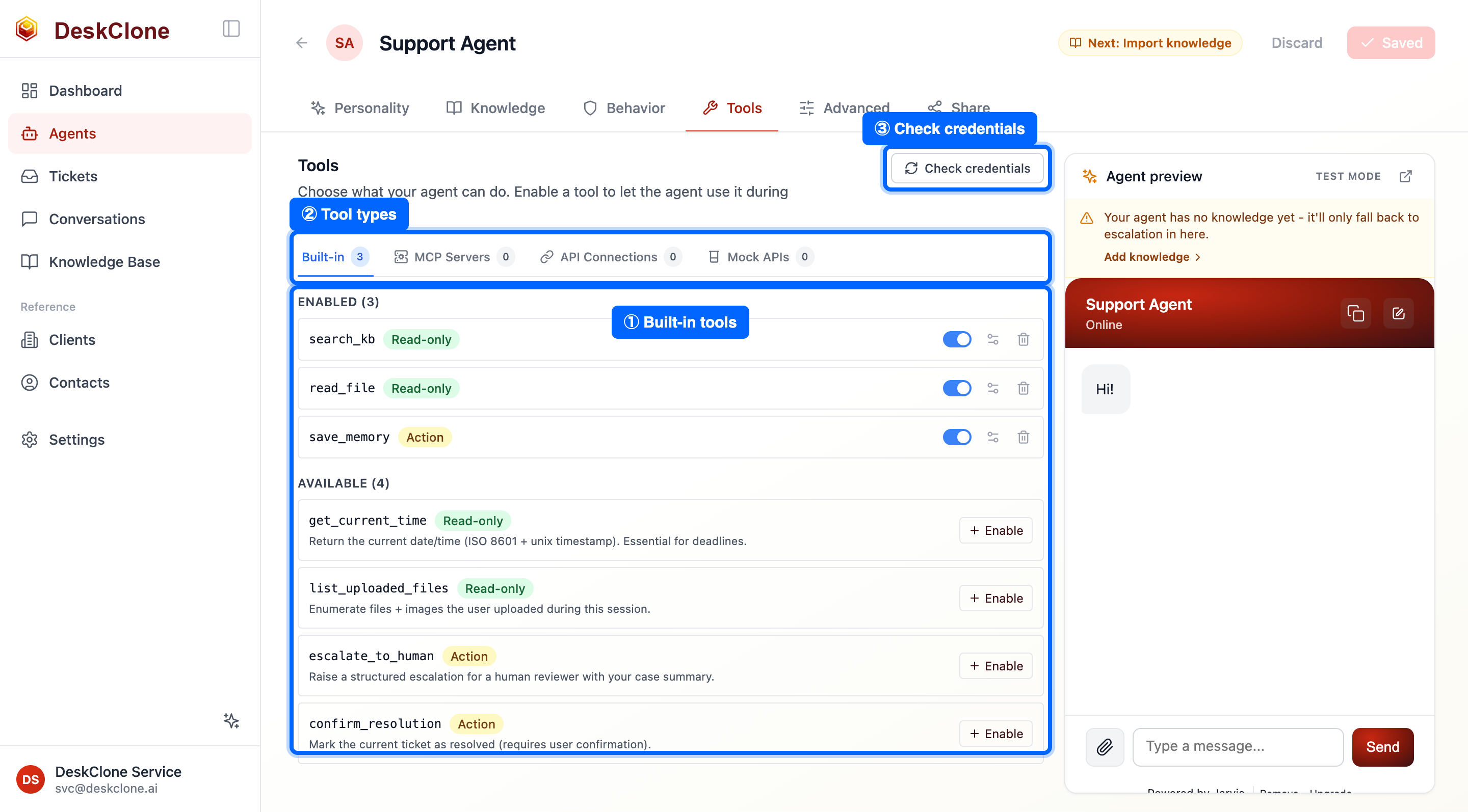
The agent Tools tab showing one tool list with type filter chips (All, Built-in, MCP, Apps, API, Mock), the Connect an app button, and the built-in tool catalog
Built-in Tools
DeskClone ships a catalog of safe, ready-to-use tools you can switch on with a single toggle. Common ones include:
- Search knowledge base - find relevant content to answer a question
- Read a file - open a specific knowledge base file
- Save a memory - remember a detail for later in the conversation
- Get the current time - useful for deadlines and "how long ago" questions
- List uploaded files - see the files and images a visitor attached in the chat
- Confirm resolution - mark a question as resolved
- Escalate to a human - hand off when the agent cannot resolve the request
Each tool shows its risk as a badge - Read-only tools change nothing; Makes changes tools act on your connected systems. You enable a tool with its toggle.
Skills
Skills (also known as AI actions) are things your agent completes for visitors during a conversation - capture an interested lead, book a callback, issue a refund - each delivered through a tool you connect, with your guardrails enforced and a verified receipt of what actually happened. Skills live on their own Skills tab (right after Knowledge), which also lists your agent's built-in capabilities - the full answer to "what can my agent do?".
A skill has these parts: a name (like "Capture a lead"), a plain-language line saying when to use it, optional guidance on how to go about it, the fields it collects in conversation (a name, an email, an order number), and the destination it sends to - a connected tool (your automation platform, a webhook, a spreadsheet, any API connection) or an email notification to an address you set. The notification address is fixed when you save the skill; the agent can never choose or change it, each conversation can send at most a few, and test runs are labeled [TEST] in the subject.
Create the skill
On the Skills tab, create a skill: name it, say when the agent should use it, list the fields to collect, and pick the destination. Your first skill can simply email you what it collects - no app connection needed; saving it switches skills on for the agent automatically.
Connect an app when you want one
To deliver into a spreadsheet, your automation platform (Pabbly Connect, Zapier, Make), a webhook, or any API, connect it on the Tools tab with Connect an app, then point the skill at it.
Optionally, say how to go about it
The skill's guidance field tells the agent how to behave while running it - "answer their question first, collect details conversationally, never as a form". Leave it blank for sensible defaults, or click the wand next to either text field to draft it with AI (it proposes; your own words are never overwritten - you choose Use this or Keep mine). The guidance lives on the skill, so removing the skill removes it everywhere.
Test it for real
Test runs the skill through the real chain - your connected tool actually receives the data, marked as a test (a source: "test" field and header) so your workflow or sheet can filter it. The receipt shows on the card.
Honesty guarantees, the same ones behind refunds:
- The agent confirms a skill to the visitor only from the verified receipt - details come from your tool's actual response. For destinations that don't confirm success in their responses (many webhooks acknowledge with plain text), the skill form offers the honest choice: receipts then say sent, not completed, and your workflow's own history is the completion record.
- If a skill fails or is blocked, the agent says plainly that it was not completed and brings in your team. Repeated failures - say a workflow deleted in your automation platform - email you with what's failing, since when, and the fix; the alert clears itself on the next success.
- Test runs and preview conversations are always marked as tests in the delivered data, so your real records stay clean.
New agents start with a sensible default tool set, so they can answer from your knowledge base immediately.
Custom API Tools
Custom API tools connect your agent to your own systems. Point the agent at any HTTP endpoint and it can call it during a conversation.
Filter to API tools
Go to Agents, click your agent card, open the Tools tab, and select the API filter. The Tools tab shows every tool your agent has in one list - the filter chips (All, Built-in, MCP, Apps, API, Mock) narrow it by type.
Add a new API tool
Click New API tool. Give it a clear name and description - the description tells the agent when to use it.
Configure the request
Set the method (GET, POST, PUT, PATCH, or DELETE), the URL, and any path, query, or body parameters the agent should fill in.
Add authentication
Choose how the tool authenticates: bearer token, header key, basic username and password, or OAuth. Credentials are stored encrypted.
Test it
Use the Test button to send a sample request and confirm the connection works before going live.
Creating a custom API tool: give it an ID, name, endpoint, and method, and it's added to your agent.
Write the tool's description for the agent, not for yourself. "Look up the status of an order by its order number" tells the agent exactly when to reach for it. A vague description leads to the tool being used at the wrong time, or not at all.
Apps
If you use a popular service, you do not have to wire it up by hand. Connecting an app from the catalog sets up the right tools for you in a couple of clicks. Apps are available for:
- Zendesk - create and update tickets
- HubSpot - look up contacts, create and read tickets
- Salesforce - run lookups, create and update cases
- Shopify - look up orders and customers
- Stripe - check payments and issue refunds
- PayPal - check transactions
- Slack - post messages
- Jira - search, create, and comment on issues
- Linear - search, create, and comment on issues
- GitHub - read and create issues
- PagerDuty - page the on-call, create and read incidents
- Notion - read pages
- Calendly - check availability and bookings
- Pabbly Connect - trigger a workflow you already run
- Zapier - trigger a Zap you already run
- Make - trigger a scenario you already run
- Webhook - send data to any webhook URL
- Google Sheets - append rows and read ranges in your spreadsheets
The automation-platform apps (Pabbly Connect, Zapier, Make, Webhook) take one input - your workflow's webhook URL - and it is stored encrypted like any credential, because webhook URLs carry access in the URL itself. They pair naturally with a skill: the skill collects the details, your workflow does the rest (add a row, send yourself an email, update your CRM - anything your platform can do).
Google Sheets connects with a service account: paste the sheet's URL and the service-account key file (the connect screen walks you through both, and tells you the one manual step Google requires - sharing the sheet with the service account's email address). Rows land straight in your sheet; the sheet's own notification rules (Tools → Notification settings) can email you on every change, so a lead-capture skill plus one toggle in your sheet is a complete pipeline with nothing else to maintain.
Connecting an app: Connect an app, pick a service (Calendly here), paste the credential, and its tools are added to your agent.
Open the app catalog
On the Tools tab, click Connect an app.
Pick a service
Choose the app for the service you want (for example, Shopify). Use the search box or the category filters (Support, CRM, Development, and so on) to find it quickly.
Connect your account
Enter the credentials the service asks for (an API key, token, or OAuth login). Each field says where to find its value, and the form links to the credentials guide below. The relevant tools are added to your agent automatically.
Review the result
After connecting, DeskClone checks your credentials against the service and shows the outcome. (Webhook connections are the one exception - they are never test-fired on connect, because a probe would run your real workflow; use a skill's Test button instead.) The same screen tells you the new tools start out employee-only (your public widget will not use them yet) and offers one click to allow customer chats to use the read-only tools. Tools that make changes stay employee-only - create a skill that uses them.
Where to get each service's credentials
- Zendesk - API token: Admin Center → Apps and integrations → APIs. Connect with your Zendesk subdomain and agent email.
- HubSpot - private app access token: Settings → Integrations → Private Apps. Grant the contacts read and tickets read/write scopes.
- Salesforce - consumer key and secret: Setup → App Manager → New Connected App. Enable OAuth and the Client Credentials flow, and set a run-as user (that user's permissions decide what the agent can reach). Connect with your My Domain name.
- Shopify - Admin API access token: Apps → Develop apps → your app → API credentials.
- Stripe - restricted secret key: Dashboard → Developers → API keys. Restrict it to charges, customers, and refunds.
- PayPal - client ID and secret: developer.paypal.com → Apps & Credentials. Pick sandbox or production to match the environment you select in the form.
- Slack - bot token (xoxb-...): api.slack.com/apps → your app → OAuth & Permissions, then install the app to your workspace.
- Jira - API token: id.atlassian.com → Security → API tokens. Connect with your Atlassian site name and account email.
- Linear - personal API key: Settings → Security & access → Personal API keys.
- GitHub - fine-grained personal access token: Settings → Developer settings → Personal access tokens. Scope it to the repositories and permissions the agent needs.
- PagerDuty - REST API key: Integrations → API Access Keys. Also enter the email of a PagerDuty user; incidents the agent creates are attributed to them.
- Notion - integration token: notion.so/my-integrations. Share the pages or databases with the integration to grant access.
- Calendly - personal access token: Integrations → API & Webhooks.
MCP Servers
If you run a Model Context Protocol (MCP) server, you can connect it to expose its tools to your agent. From the Tools tab, select the MCP filter and click Add MCP Server; add your server's URL and credentials, and DeskClone will list the tools it provides so you can enable the ones you want.
The Mock filter (visible under Tools) is coming soon. It will let you give a tool canned responses for testing, so you can try a tool's behavior before the real API is ready.
Risk Levels and Visibility
Every tool has a risk level, and DeskClone uses it to keep your public widget safe:
- Read-only - looks something up, changes nothing. Example: check an order status.
- Makes changes - changes data. Example: update a ticket, trigger a workflow.
- Destructive - removes or irreversibly changes data. Example: issue a refund.
Customer-facing widget conversations are locked down by default. Public chats see read-only tools, the safe built-ins (like escalate to a human), and your configured skills - the guarded path described above. Your raw change-making and destructive tools are not offered to the agent in public chats unless you explicitly set a tool's visibility to include customers; the recommended pattern is to keep them employee-only and route customer actions through skills, so every action passes your guardrails and returns a verified receipt. Employee-assisted ticket work sees all risk levels, with the approval workflow adding another check on top.
On the Tools tab, any tool your public widget will not use carries a Not in customer chats badge, so you can see at a glance which tools are employee-only. Change a tool's availability from its settings (the gear icon on its row).
Guardrails
For any tool that moves money or changes customer data, set guardrails. A guardrail (for example, a maximum refund amount, or a required field) is enforced before the request is sent - so a cleverly worded message cannot talk your agent into exceeding it. When a guardrail blocks an action, the agent is told why and can escalate to a human instead of retrying.
Always set guardrails on financial and data-changing tools. Risk gating keeps these tools out of public chats, and guardrails cap what they can do even in employee-assisted work. Together they are your safety net.
Checking Tool Health
Once you have connected apps and custom tools, click Check credentials on the Tools tab to confirm each one's credentials still work. The check tells you which tools are healthy and which need attention (for example, an expired API key), so a broken integration does not surface as a failed answer to a customer.
You do not have to keep checking manually. If a connection's credentials are rejected during a real conversation (for example, an API key expires), DeskClone alerts you automatically:
- The account admin gets an email right away saying which tool failed, what the service returned, what it means for your agent, and the exact next step.
- The tool shows a red Needs reconnect badge on the Tools tab, with a summary banner at the top, until it works again.
- Affected conversations are handed to your team in the meantime - the agent never pretends an action worked while its connection is broken.
Update the credential and the alert clears automatically on the next successful call - there is nothing to dismiss.
What's Next
Your agent now has the knowledge and the actions it needs. Time to put it in front of visitors - head to Embed Widget to generate and install the chat widget.
Was this page helpful?