Team and Permissions
DeskClone is built for teams. You can invite as many teammates as you need, and roles control what each person can see and change. There is no per-seat charge on any plan, so add everyone who works on support.
Inviting Teammates
Go to Members
Navigate to Settings > Members.
Invite a new member
Click the invite button and enter their email address.
Assign a role
Choose the role for the new member (see the roles below). You can change it later.
Send the invite
The teammate receives an email invitation. Once they accept and sign in, they appear in your members list with the role you assigned.
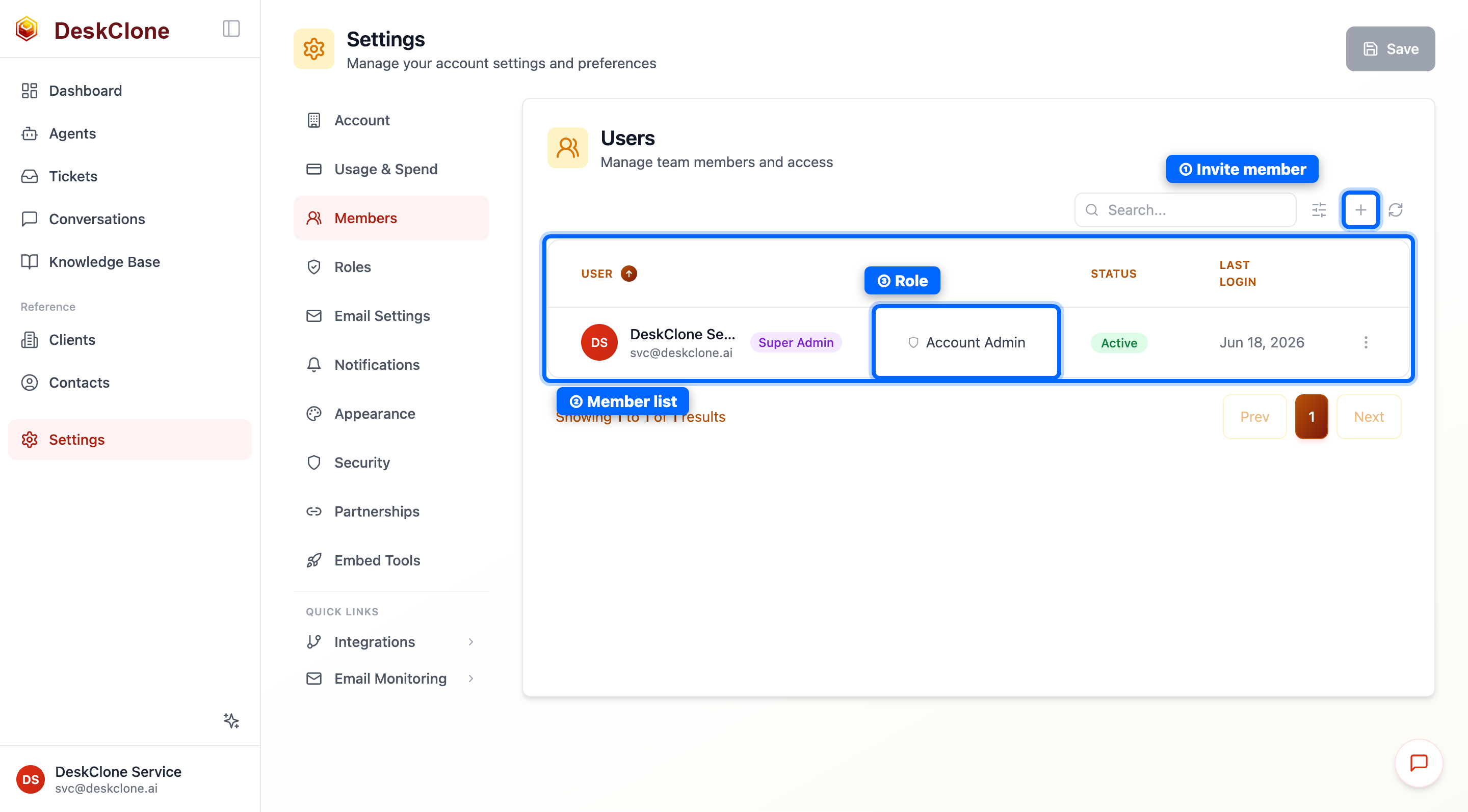
The Settings Members page showing the invite button, the list of team members, and each member's role
There is no limit on team members across any plan - seats are not gated. Invite everyone who handles support, including part-time and seasonal staff.
Roles
DeskClone ships several built-in (System) roles, and you can create your own. The built-in roles are:
- Account Admin - full access to everything, including billing, team management, and account settings
- Admin - broad access across all clients and content
- Supervisor - manage tickets, conversations, and knowledge base across all clients, with fewer account-level permissions
- Agent - works on assigned tickets and clients only - the everyday support role
Each role shows how many permissions it grants and whether its scope is all clients or assigned only. Assign the lowest role that lets someone do their job: most support staff are Agents or Supervisors, and you should reserve Account Admin for the people who manage billing and settings.
Managing Roles
Navigate to Settings > Roles to see each role, its permission count, and its scope. To define your own permission set, click Create Role.
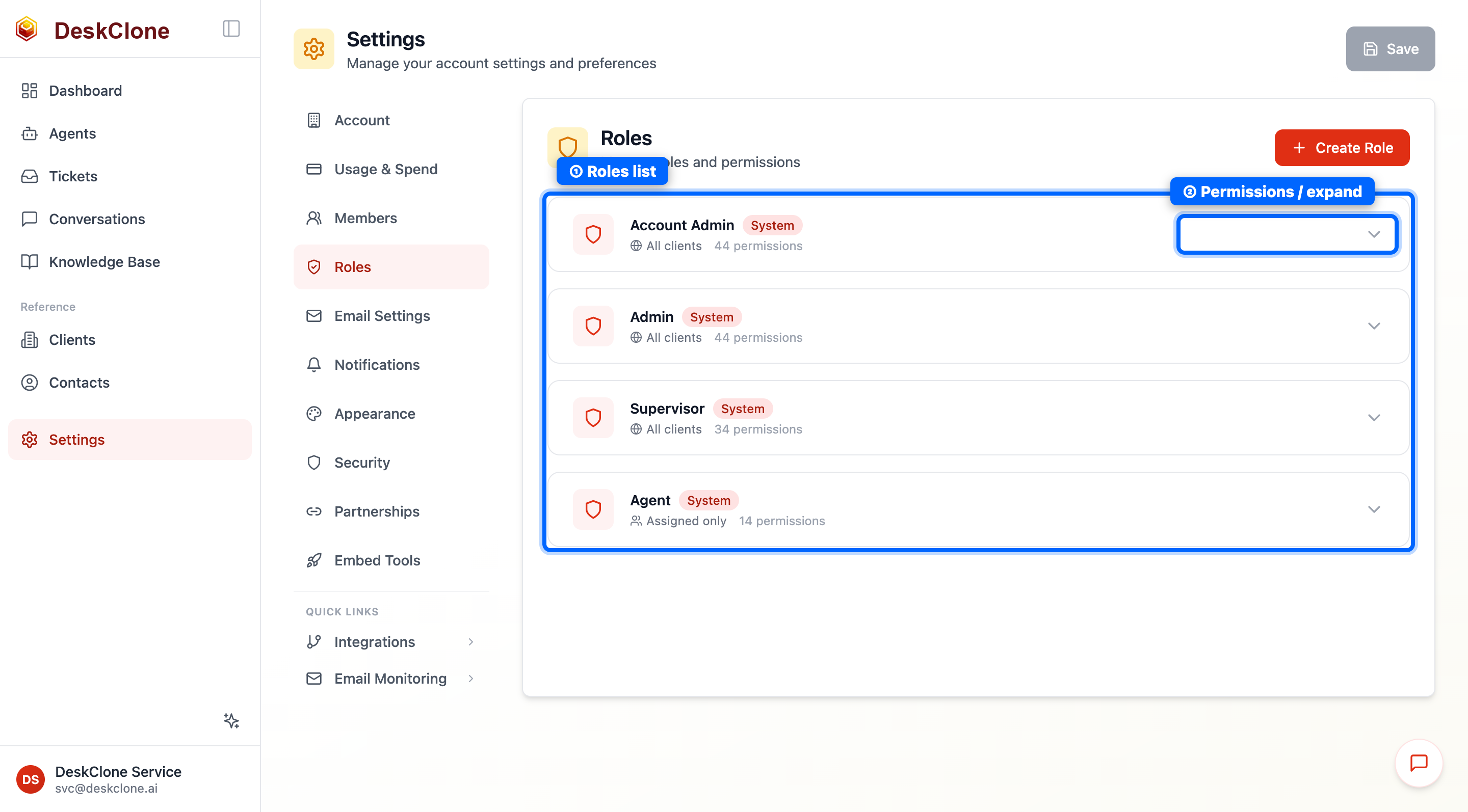
The Settings Roles page showing the built-in roles - Account Admin, Admin, Supervisor, and Agent - with their permission counts
Changing or Removing a Member
From Settings > Members you can:
- Change a member's role - use the role control on their row. The change takes effect on their next page load.
- Remove a member - revoke their access. Their past activity (tickets they worked, notes they added) stays in your records; only their ability to sign in is removed.
Make sure at least one Account Admin remains on the account at all times. If you remove or downgrade the last one, no one will be able to manage settings or billing.
What's Next
To manage your organization details, plan, and usage, head to Account and Billing.
Was this page helpful?